Alert Bar
A thin bar under the navigation that carries one short message, such as a sale or an event, and links to a page of your choice.

Where: Theme Options > Header > Alert Bar.
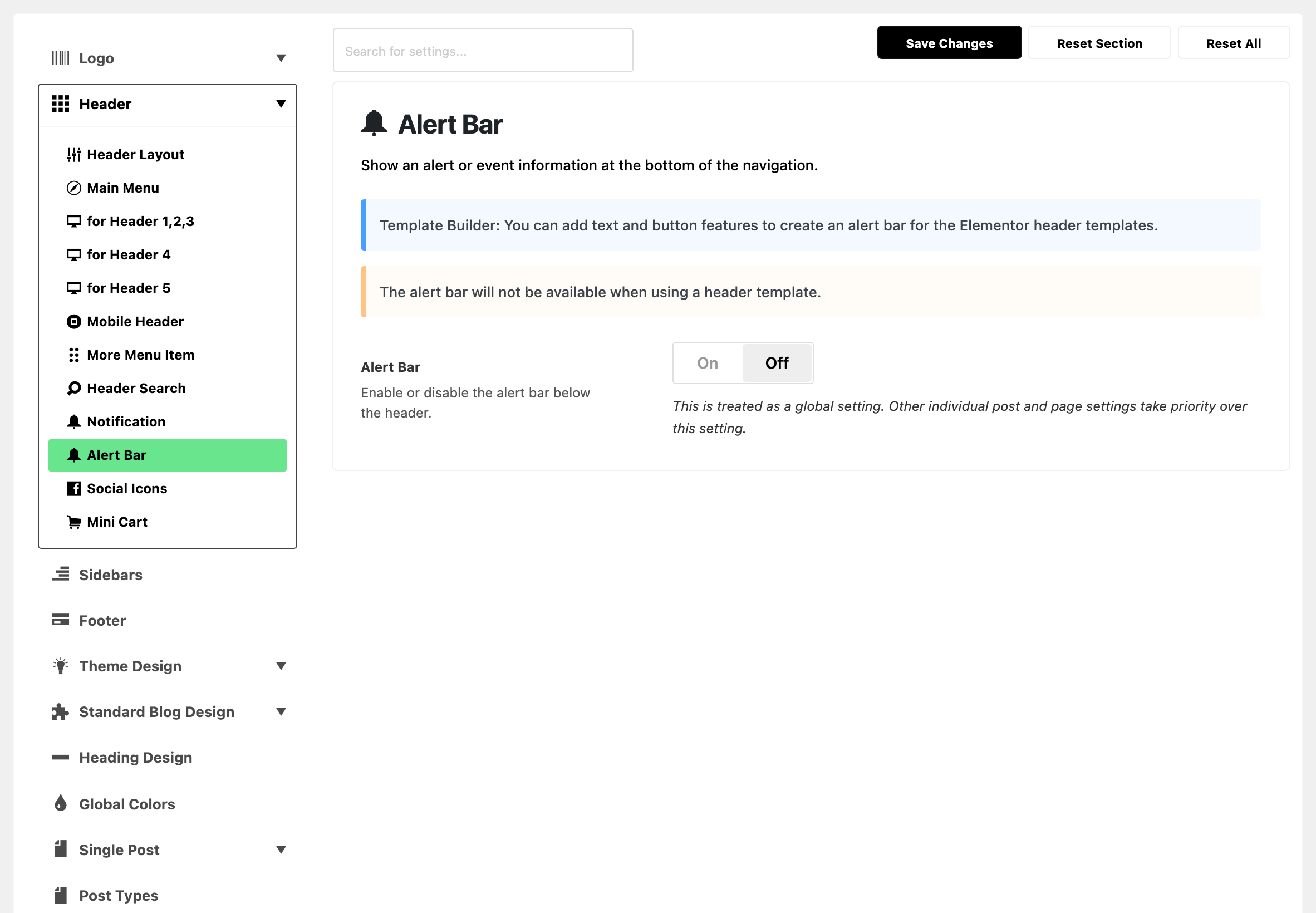
The bar belongs to the predefined headers. It is not available with a header built as a Ruby Template, as the panel's warning says: add a text and a button to the template instead.
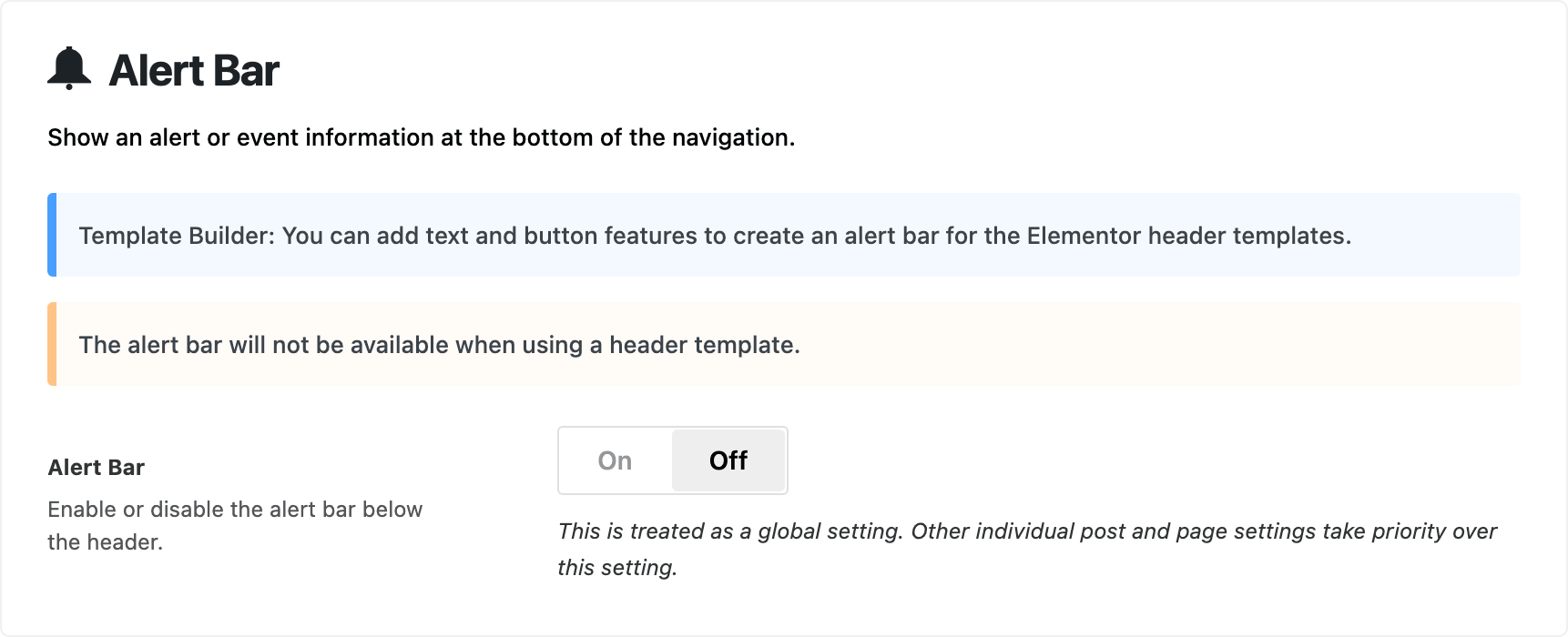
Only the first switch shows until you turn it on. Every other field is hidden while Alert Bar is off.
The walk through is adding alert bar into the header.
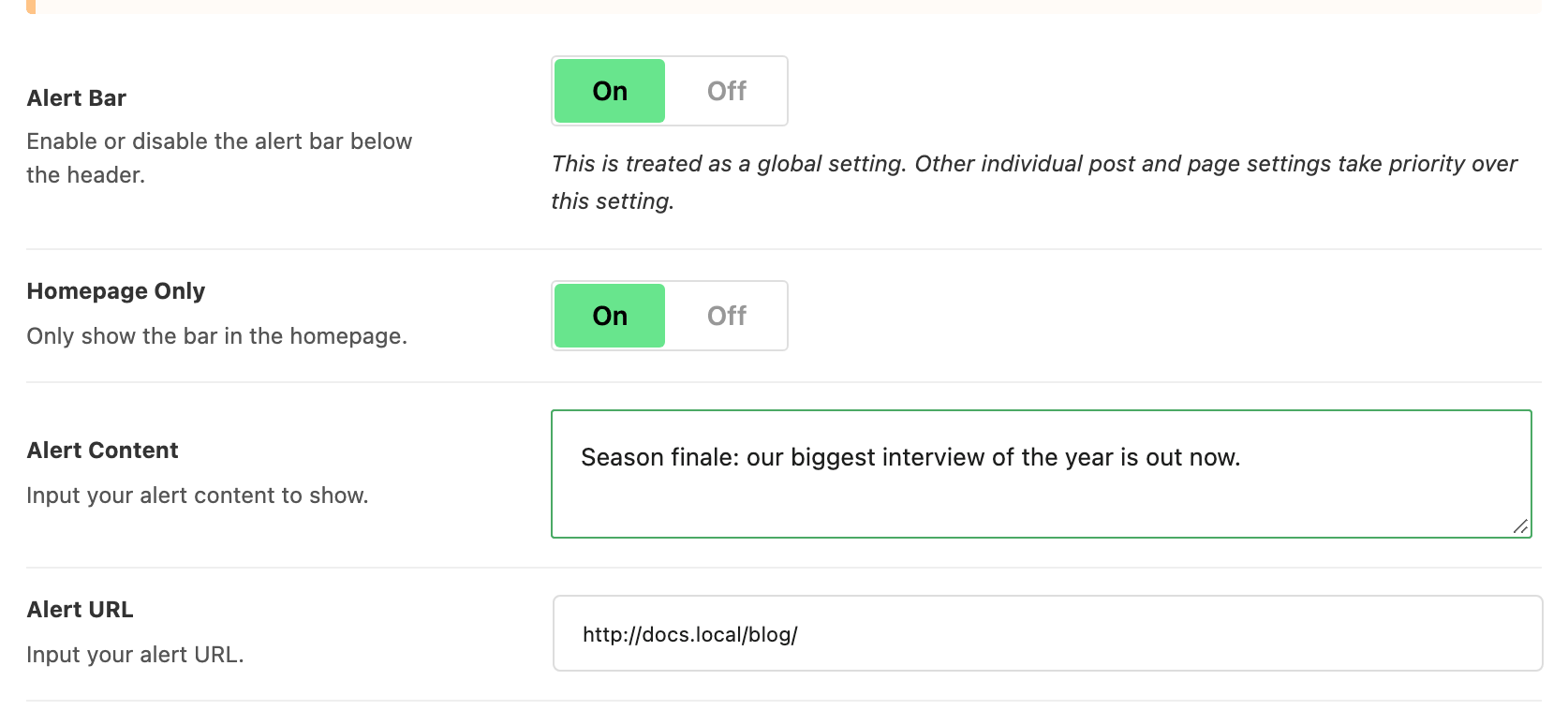
- Alert Bar: shows the bar. Off by default. On phones it shows under the mobile header, and AMP pages show it too.
- Homepage Only: limits the bar to the front page. Default: on, so a bar you just turned on shows on the front page and nowhere else. Turn it off to show the bar on every page.
- Alert Content: the message. Default: empty. Left blank, the bar does not show at all, whatever the switch says. Keep it to one line: the whole bar is a single link.
- Alert URL: where a click on the bar goes. Default:
#, which goes nowhere. Replace it.- Cleared, the bar does not show.
- The link opens in a new tab.
- Background Color: the bar's colour. Empty by default, which is a light orange.
- Text Color: the message's colour. Empty by default, which takes the text colour of the header around it.
- Dark Mode - Background Color: the bar's colour in dark mode. Empty by default, which keeps Background Color.
- Dark Mode - Text Color: the message's colour in dark mode. Empty by default, which keeps Text Color.
- Set both dark mode colours whenever a light mode colour would be hard to read on a dark page.
- Hide when Sticky: hides the bar while the menu is stuck to the top of the screen. Off by default.
- Only matters with Sticky Main Menu on, in Main Menu.
- The bar keeps its space while hidden, so a strip the height of the bar stays under the stuck menu.
What overrides it
- One post or page: Header Alert Bar, in Single Post Settings > Widgets & Ads or Single Page Settings > Ads.
- Enable shows the bar there, even when Alert Bar is off and even off the front page with Homepage Only on.
- Disable hides it there.
- - Default - follows this subsection.
The message and link still come from this subsection. With Alert Content or Alert URL blank, Enable shows nothing.
Related
- Adding alert bar into the header: turning the bar on and filling it in.
- How to enable the menu sticky: the sticky menu that Hide when Sticky reacts to.
- How to config the header
Did this answer your question?