Main Menu
How the main menu behaves and how its dropdowns look: the hover effect on top level items, whether the bar sticks while scrolling, the spacing between items, and the colours of every submenu and header dropdown.
Where: Theme Options > Header > Main Menu.
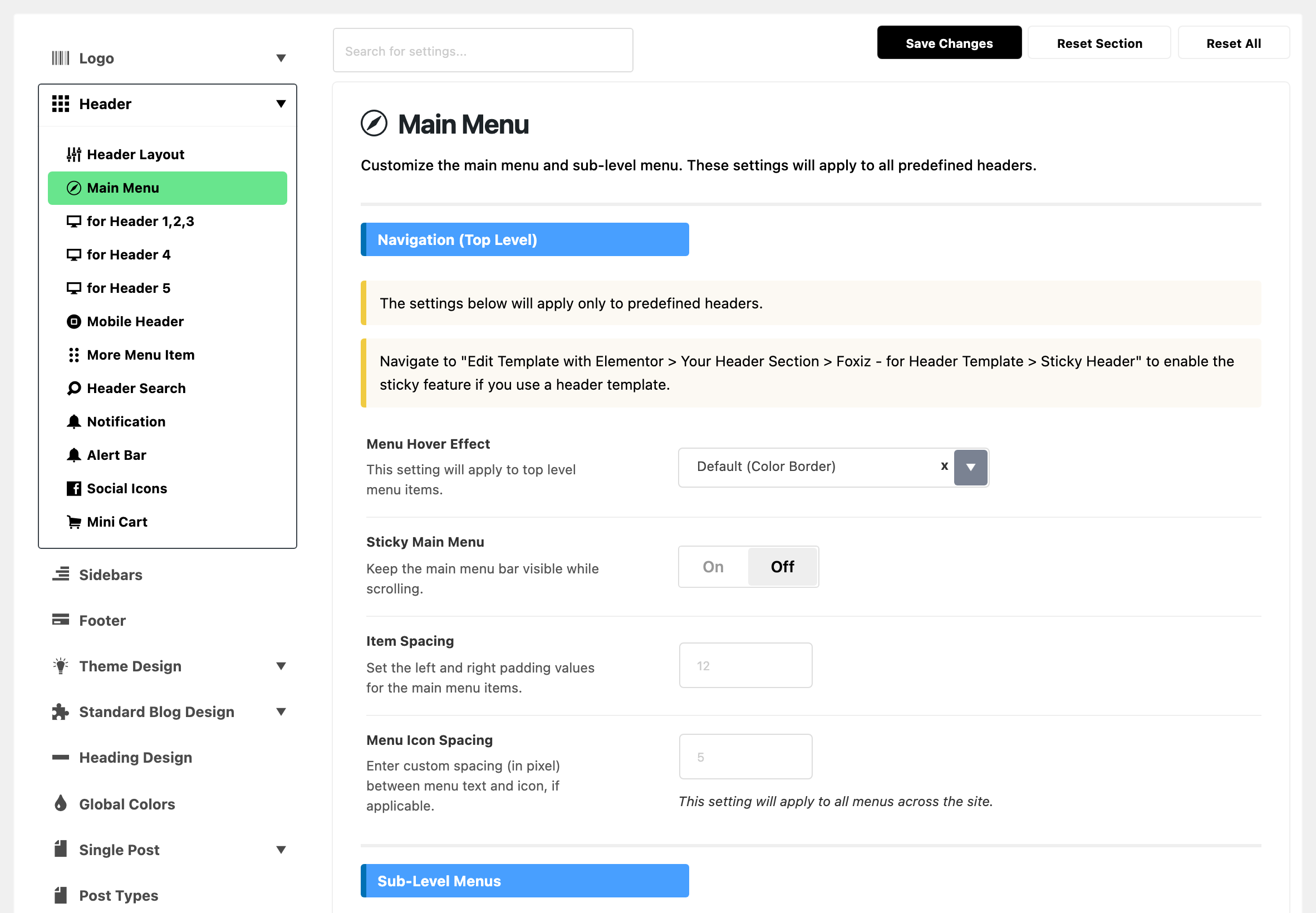
These settings apply to all five predefined headers. The fonts of the menu are not here: they are in Typography > Header Menus. The colour of the navigation bar itself is set per layout, in the for Header subsection that matches your layout.
Three groups, in panel order.
Navigation (Top Level)
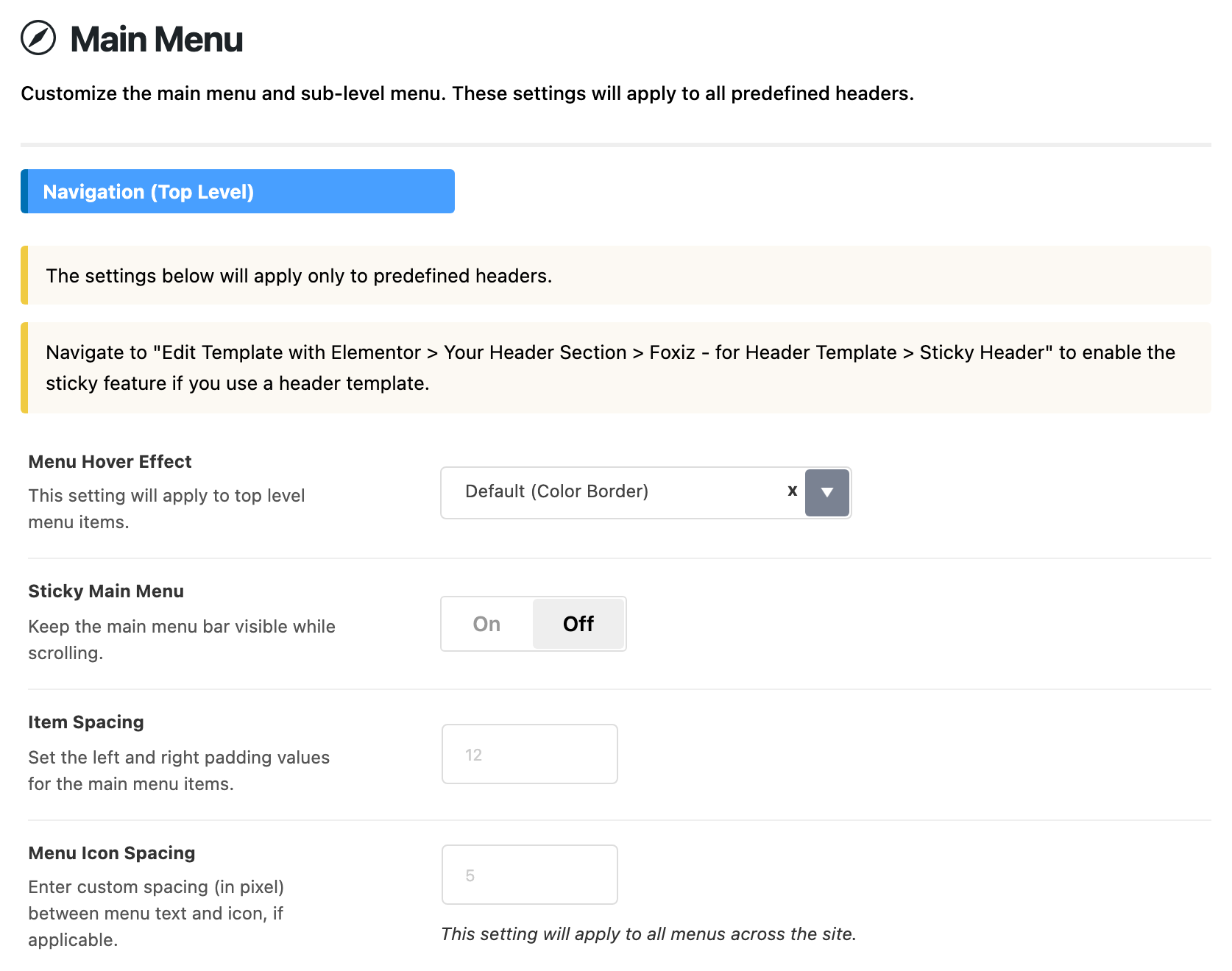
The group's notice says it: these settings reach predefined headers only. A Ruby Template header turns sticky on in Elementor instead, on its header section, under Foxiz - for Header Template > Sticky Header.
- Menu Hover Effect: what a top level menu item does when the pointer is on it.
- Choices: Default (Color Border), Style 2 (Opacity), Style 3 (Background) and Style 4 (Underline). Default: Default (Color Border).
- The colour the effect draws in is Hover Accent Color, in the for Header subsection of your layout.
- Sticky Main Menu: keeps the menu bar at the top of the screen while the visitor scrolls. Off by default. It also governs the mobile header, which has no sticky switch of its own.
- Smart Sticky: the bar comes back only when the visitor scrolls up, and gets out of the way when they scroll down. Off by default.
- Shows only when Sticky Main Menu is on.
- Turn it on when a bar that is always there takes too much room on long articles.
- Glass Effect: once the bar sticks, it turns see through and blurs what scrolls under it. Off by default.
- Shows only when Sticky Main Menu is on.
- The effect is tinted with the navigation background of your layout, and the mobile bar gets it too.
- Glass Effect for Header Template: the same effect on the sticky sections of a Ruby Template header. Off by default.
- Shows only when Glass Effect is on.
- To put the effect on one section only, leave this off and add the class
rb-glass-effectto that section in Elementor, under Advanced > CSS Classes, as the panel's note says.
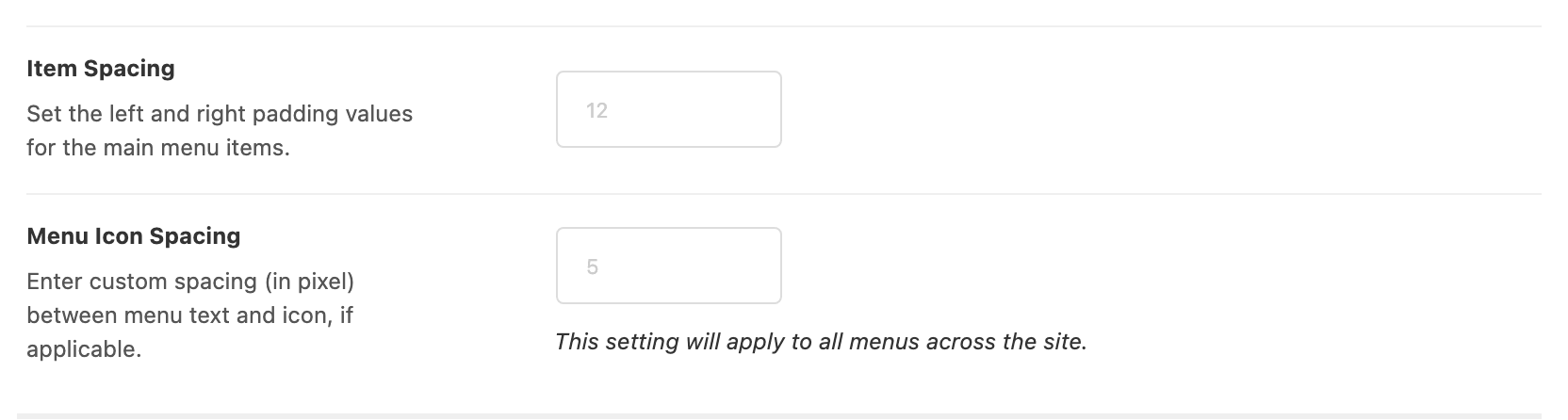
- Item Spacing: the space on the left and on the right of each top level menu item, in pixels. Default: empty, which means 12 on each side, and 20 in Layout 4 (Border).
- The more button at the end of the menu takes the same spacing.
- Lower it when a long menu wraps or runs into the icons on the right.
- Menu Icon Spacing: the gap between a menu item's icon and its text, in pixels. Default: empty. The grey hint is 5.
- It applies to every menu on the site, not just the main menu.
- Only matters once your menu items have icons: see how to add icon to menu items.
Sub-Level Menus
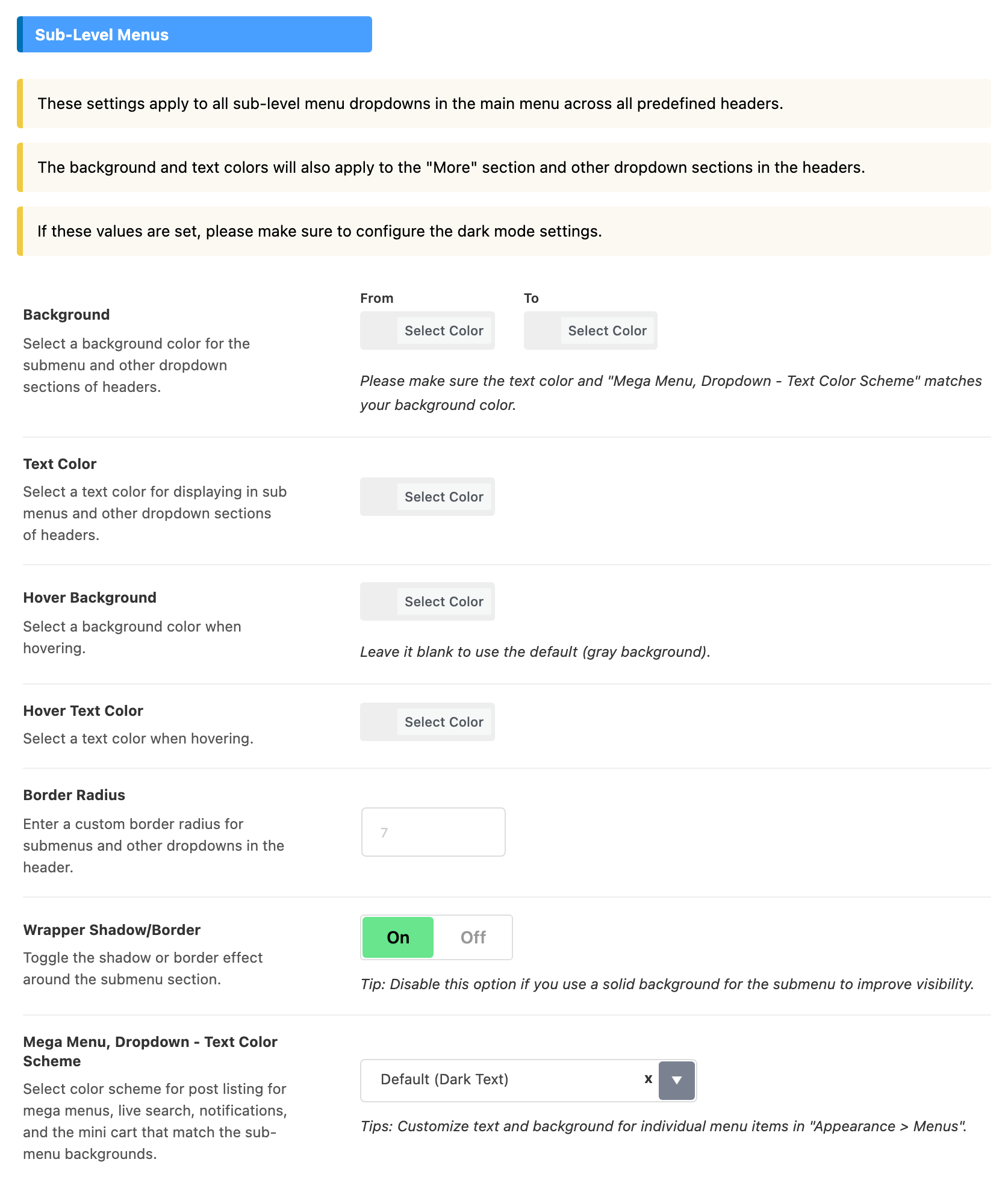
The dropdowns of the main menu, in light mode. As the group's notice says, the background and text colours also reach the more section and the other dropdowns in the header, such as the search and the notification.
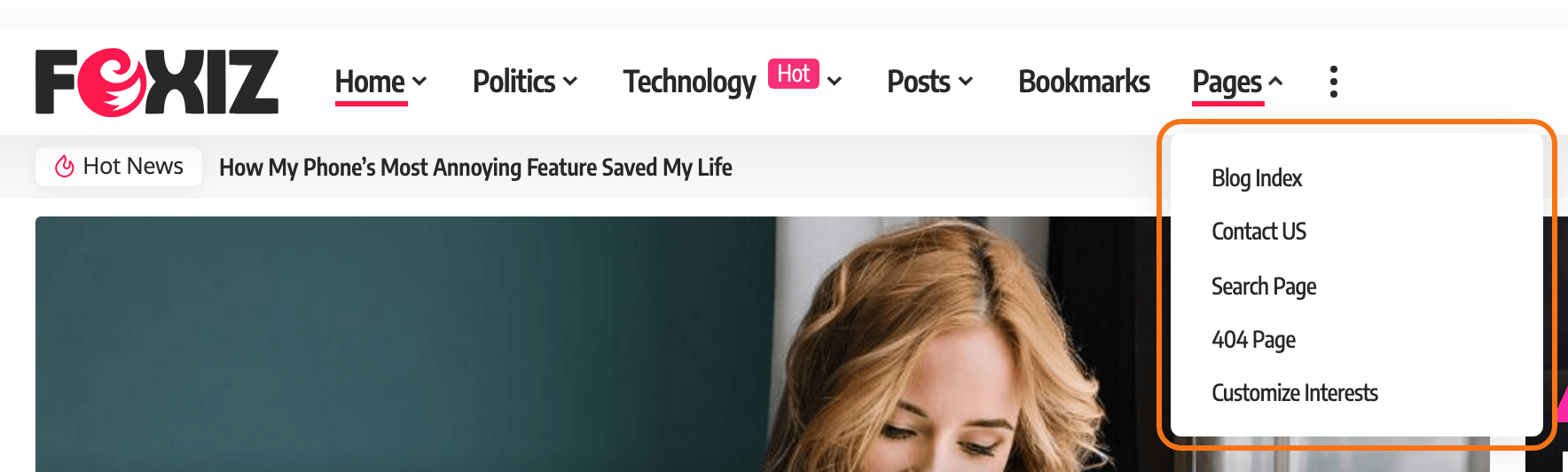
Every colour here is empty by default. If you set one, set its twin under Dark Mode - Sub-Level Menus too.
- Background: the colour behind the dropdown.
- Two boxes, From and To: fill both for a gradient, one for a flat colour.
- Blank is white.
- A dark background needs light text: change Text Color and Mega Menu, Dropdown - Text Color Scheme with it, as the panel's note asks.
- Text Color: the colour of the dropdown's links. Blank uses the site's body text colour.
- Hover Background: the colour behind a link while the pointer is on it. Blank is a light gray, as the panel says.
- Hover Text Color: the link colour while the pointer is on it. Blank uses the site's accent colour.
- Border Radius: how round the dropdown's corners are, in pixels. Default: empty, which follows the site's corners in Round Corner: 5 by default. Type 0 for square dropdowns on a site with rounded corners. The grey 7 in the empty field is only a hint, not the value used.
- Wrapper Shadow/Border: the shadow around the dropdown, or a border on some designs. On by default. Turn it off when you give the dropdown a solid Background, as the panel's tip suggests.
- Mega Menu, Dropdown - Text Color Scheme: dark or light text for the post listings in mega menus, live search, notifications and the mini cart.
- Choices: Default (Dark Text) or Light Text. Default: Default (Dark Text).
- Pick Light Text when you gave the dropdowns a dark Background.
Dark Mode - Sub-Level Menus
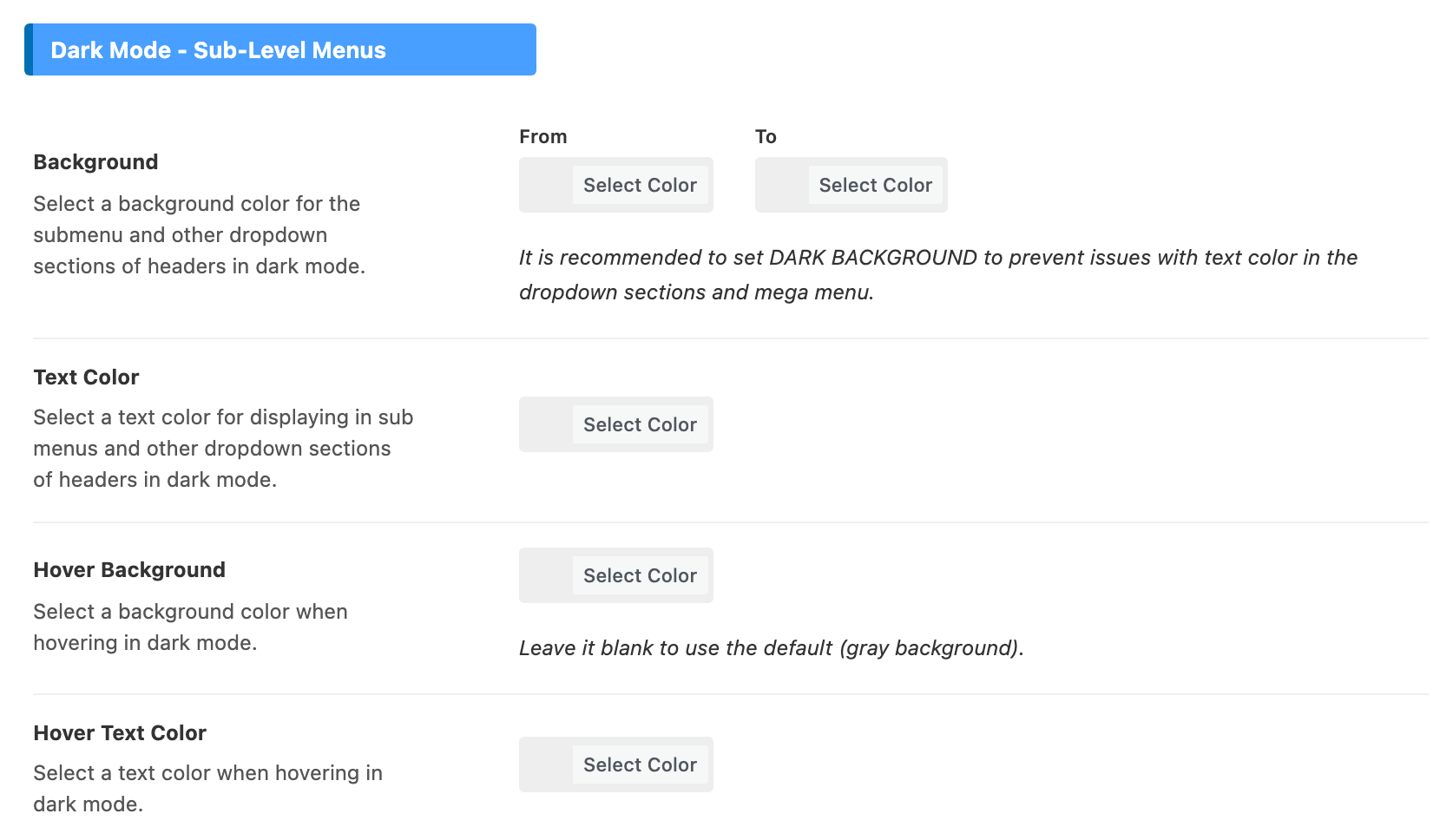
The same four colours, used when the visitor is in dark mode. All are empty by default.
- Background: the dropdown's colour in dark mode.
- From and To, as in light mode.
- Blank is the theme's own near black, not your light mode colour. Mega menus, live search, notifications and the mini cart show light text on it.
- The panel recommends a dark colour here, so the mega menu text stays readable.
- Text Color: the dropdown's links in dark mode. Blank is white.
- Hover Background: behind a hovered link in dark mode. Blank keeps the light mode Hover Background, or the default gray when that is blank too.
- Hover Text Color: a hovered link in dark mode. Blank keeps the light mode Hover Text Color, or the accent colour when that is blank too.
What overrides it
- One mega menu item: the Text Color Scheme and Background of its Category Mega Menu, in Appearance > Menus, win for that item in light mode.
- A Foxiz - Menu Navigation block in a Ruby Template header: what you set on its Style tab wins for that block.
- Item Spacing and Icon Spacing, under Top-Level Menu Items.
- Border Radius, Text Color and the background gradient, under Submenu Items.
- Text Color Scheme, under Mega Menu - Color Scheme.
Related
- How to create and set up header menus: building the menu and assigning it to the header.
- How to enable the menu sticky: sticky for a predefined header and for a Ruby Template.
- How to create mega menus
- How to add icon to menu items
- How to config the header
Did this answer your question?