Social Icons
How big the social icons at the end of the navigation bar are.

Where you add your social links
The icons themselves come from Theme Options > Social Profiles, not from this subsection.
- Fill in the URL of each network you use there, such as Facebook URL or Instagram URL.
- Only the networks with a URL get an icon. Leave a field empty and that icon does not show.
- The social icons in the footer use the same list.
Step by step, with every network listed: Social Profiles.
Where: Theme Options > Header > Social Icons.
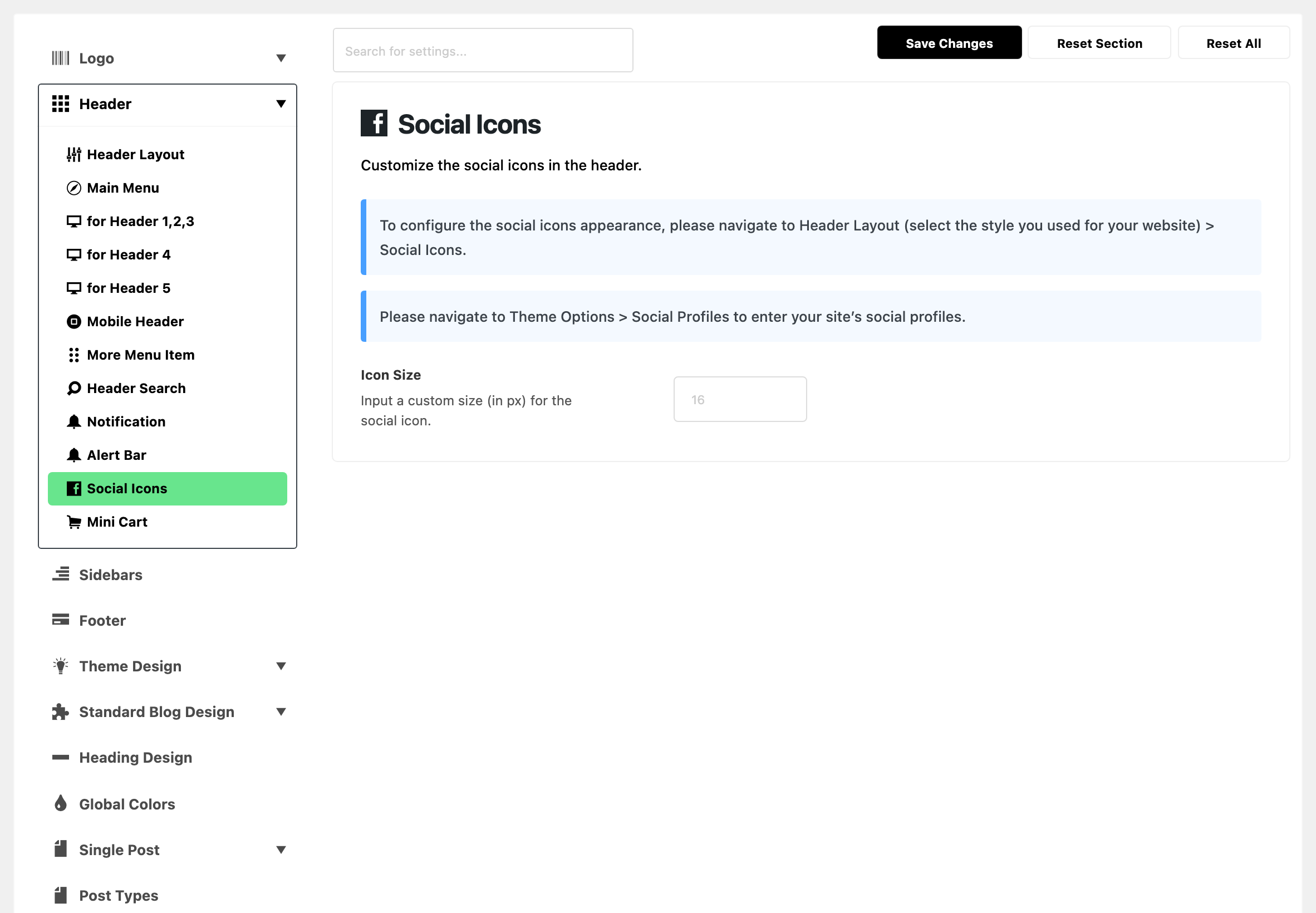
One field. The rest of what makes these icons appear is set in two other places, as the notices at the top of this subsection say:
- The switch that shows them: Social Icons, in the for Header subsection that matches your layout. It is on by default in all three.
- Which icons, and where they link: Theme Options > Social Profiles, as the tip above says.
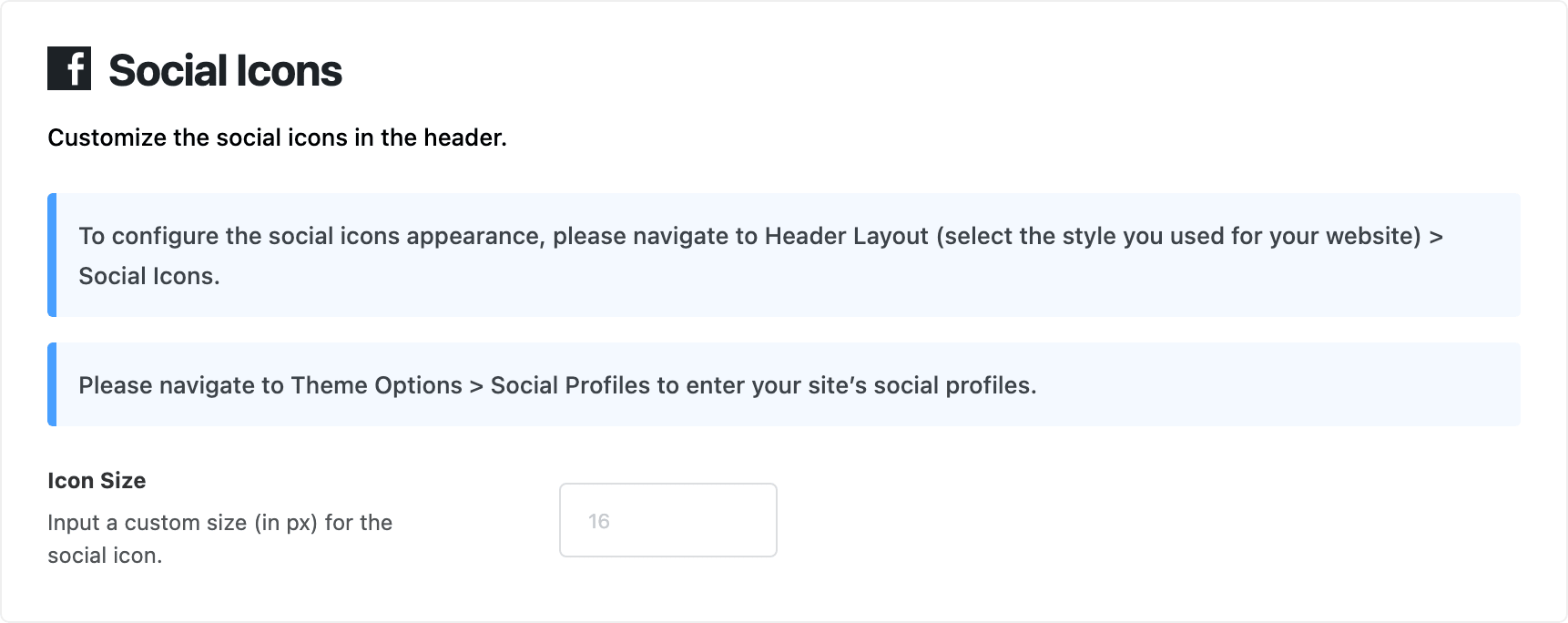
- Icon Size: the size of the social icons in the header, in pixels. Default: empty, which keeps the theme's own size. The grey hint is 16.
- On phones the icons are drawn at 85% of the number you type.
- It does not reach the social icons in the mobile menu panel, or those in the footer.
What overrides it
- A Foxiz - Social List block in a Ruby Template header: its Icon Font Size wins for that block. Left empty, the block takes Icon Size from here.
Related
- Your site social profiles: adding the profiles these icons link to.
- How to config the header: where the Social Icons switch sits for each layout.
Did this answer your question?