for Header 5
The width, height and colours of the desktop header when your site uses Layout 5 (Center Logo).
Where: Theme Options > Header > for Header 5.
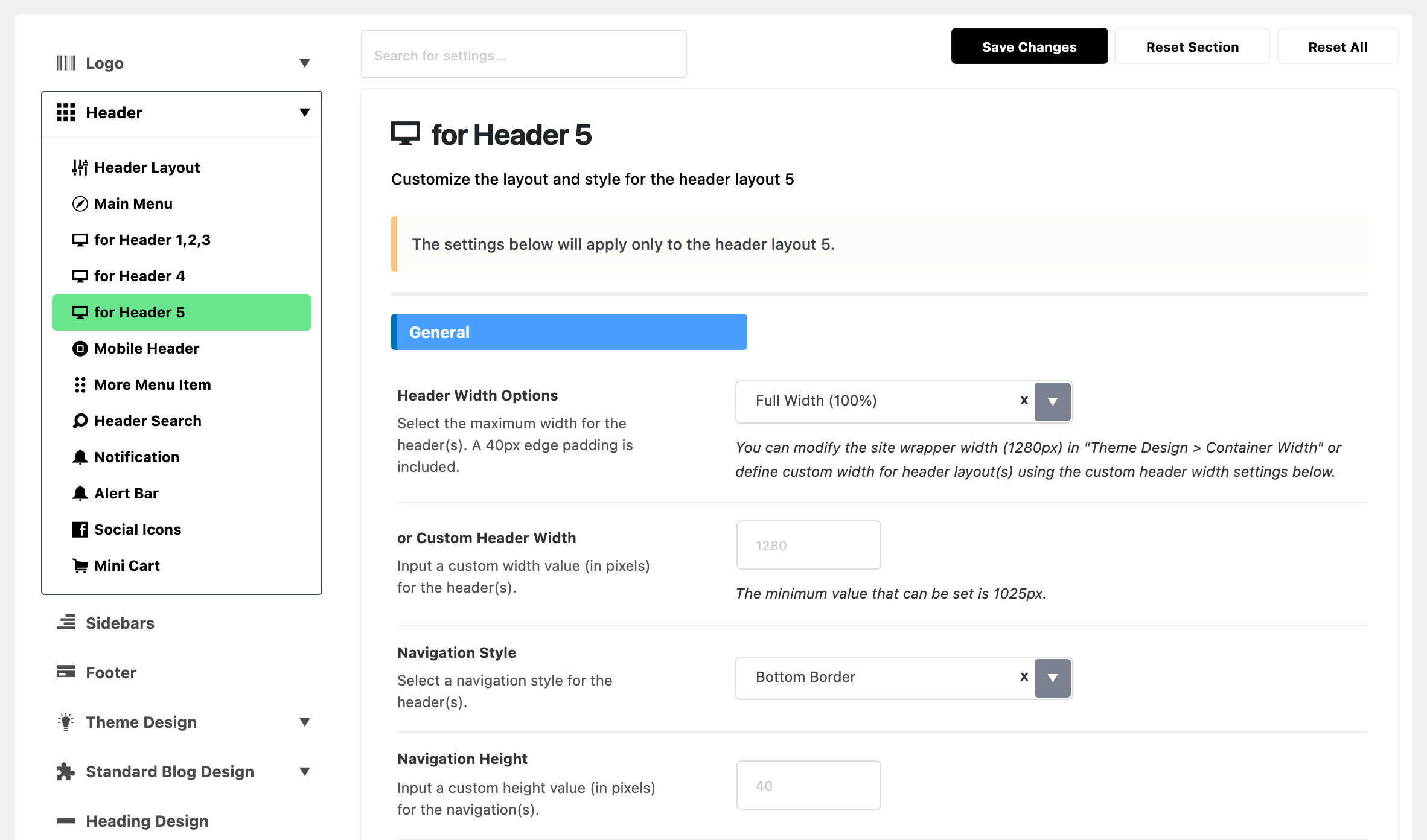
These settings reach layout 5 only. On any other layout, nothing here changes your site. Why each layout has its own subsection, and which one to edit: see for Header 1,2,3.
Layout 5 has two rows:
- the logo row on top, with the logo in the centre, the social icons on the left and the other header icons on the right;
- the menu bar under it, with the menu centred.

Most fields work exactly as in for Header 1,2,3, which explains each one in full. Below, every field of this subsection in panel order, with what is different on layout 5.
General
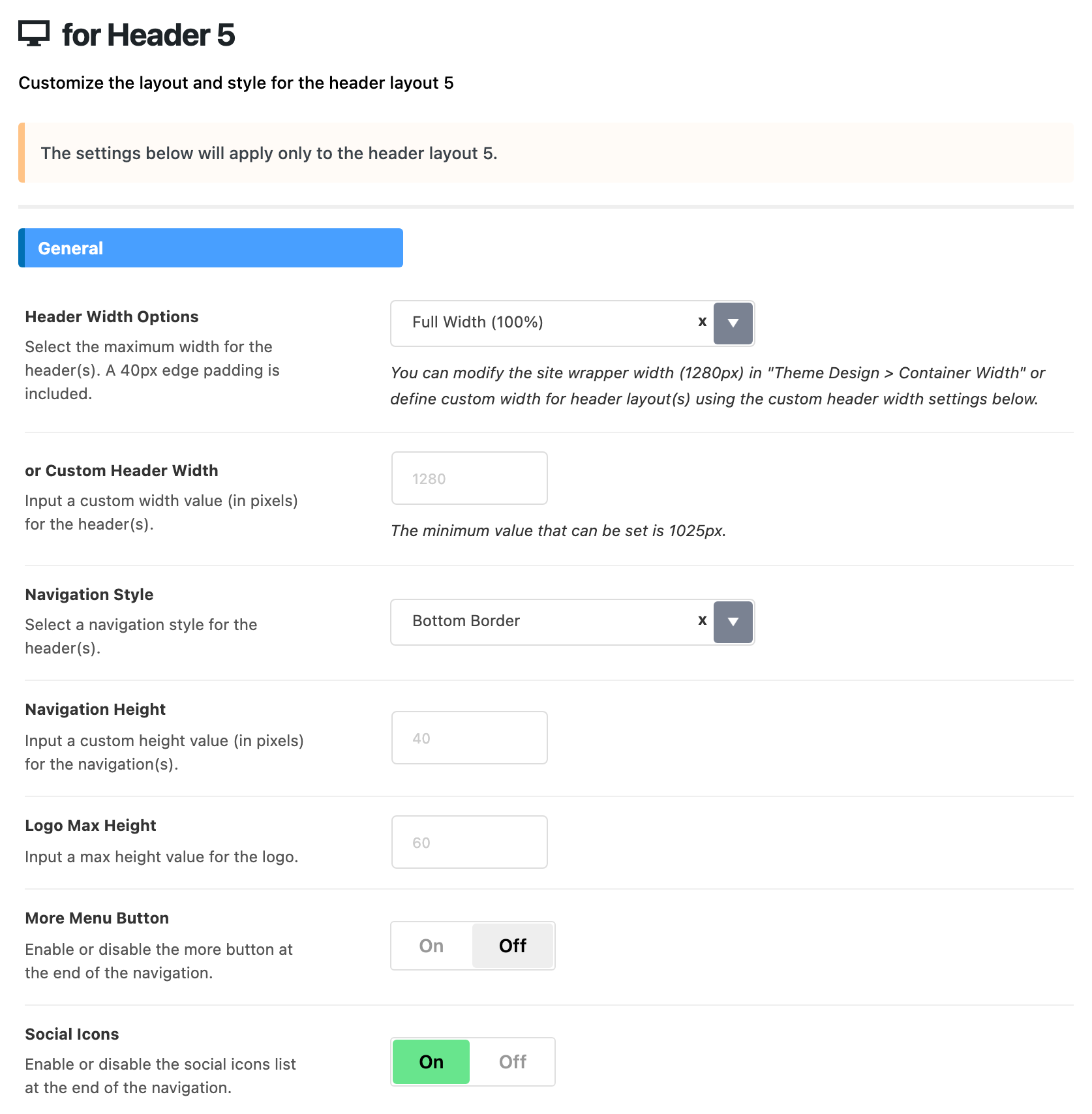
- Header Width Options: the default is Full Width (100%), not the wrapper. The two choices are listed the other way round too.
- Full Width (100%) spreads the menu bar to the screen edges. The logo row above keeps its width.
- Pick Wrapper (1280px) to keep the menu bar inside the width of your content.
- or Custom Header Width: same as for Header 1,2,3. Empty by default.
- The logo row always follows it.
- The menu bar follows it only with Wrapper (1280px).
- Navigation Style: the line or shadow at the edge of the menu bar. Layout 5 has seven choices, three more than Header 1, 2 and 3:
- Shadow
- Bottom Border: the default.
- Top & Bottom Border
- Dark Bottom Border
- Dark Top & Bottom Border
- Border Top & Bottom Shadow
- None
- A post, a page and some archive panels can pick another style. See What overrides it.
- Navigation Height: the height of the menu bar only, since the logo has its own row. Default: empty, which is 40, not 60.
- Logo Max Height: caps the logo in the centre of the top row. Empty by default, which is 60.
- More Menu Button: same as Header 1, 2 and 3. Off by default.
- Social Icons: the icons sit in the logo row, on the left, after the sign in button when that is on. On by default.
Menu
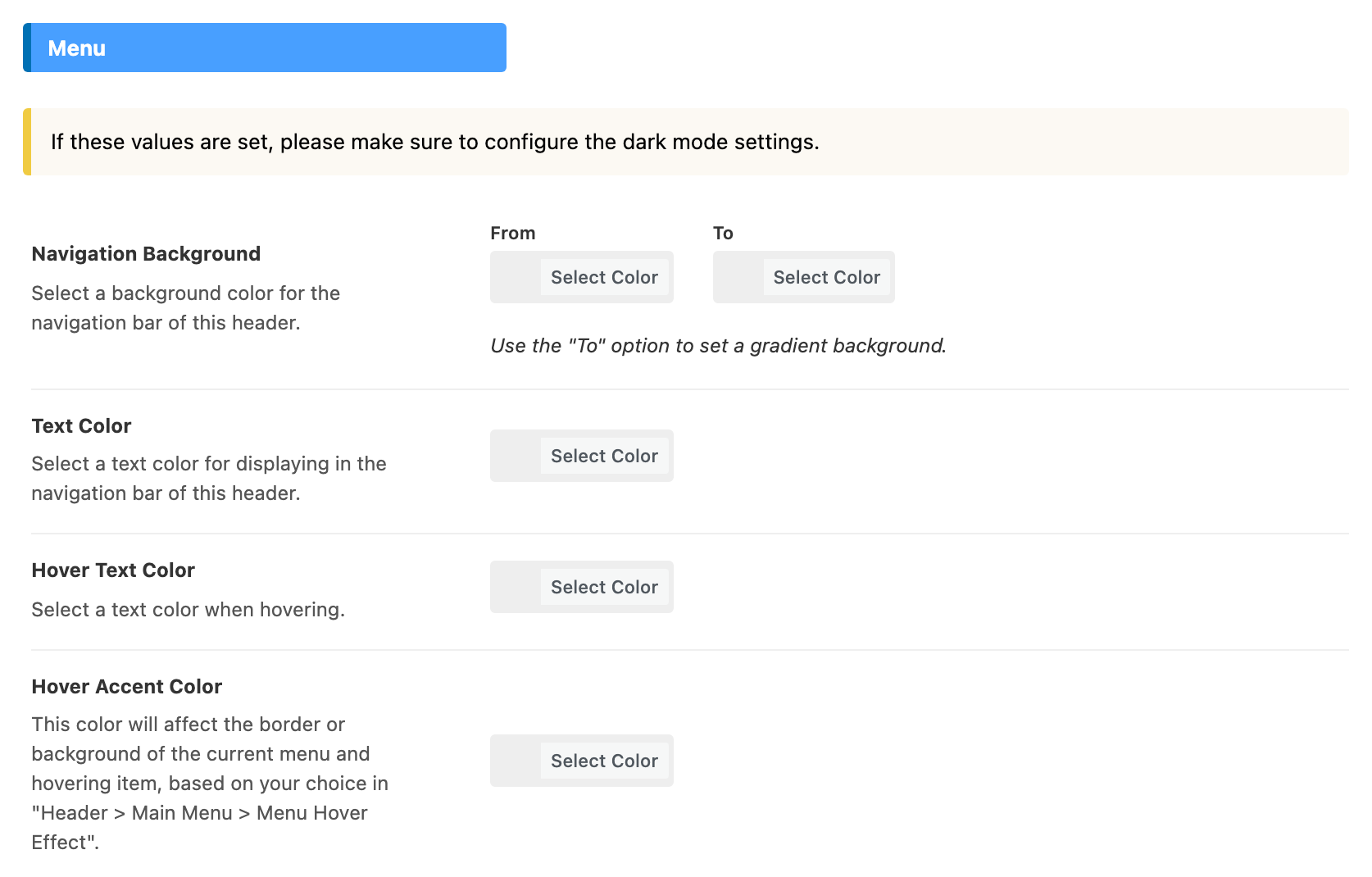
Same four colours as in for Header 1,2,3, for the menu bar of layout 5. All four are empty by default.
- Navigation Background
- Text Color
- Hover Text Color
- Hover Accent Color
Dark Mode - Menu
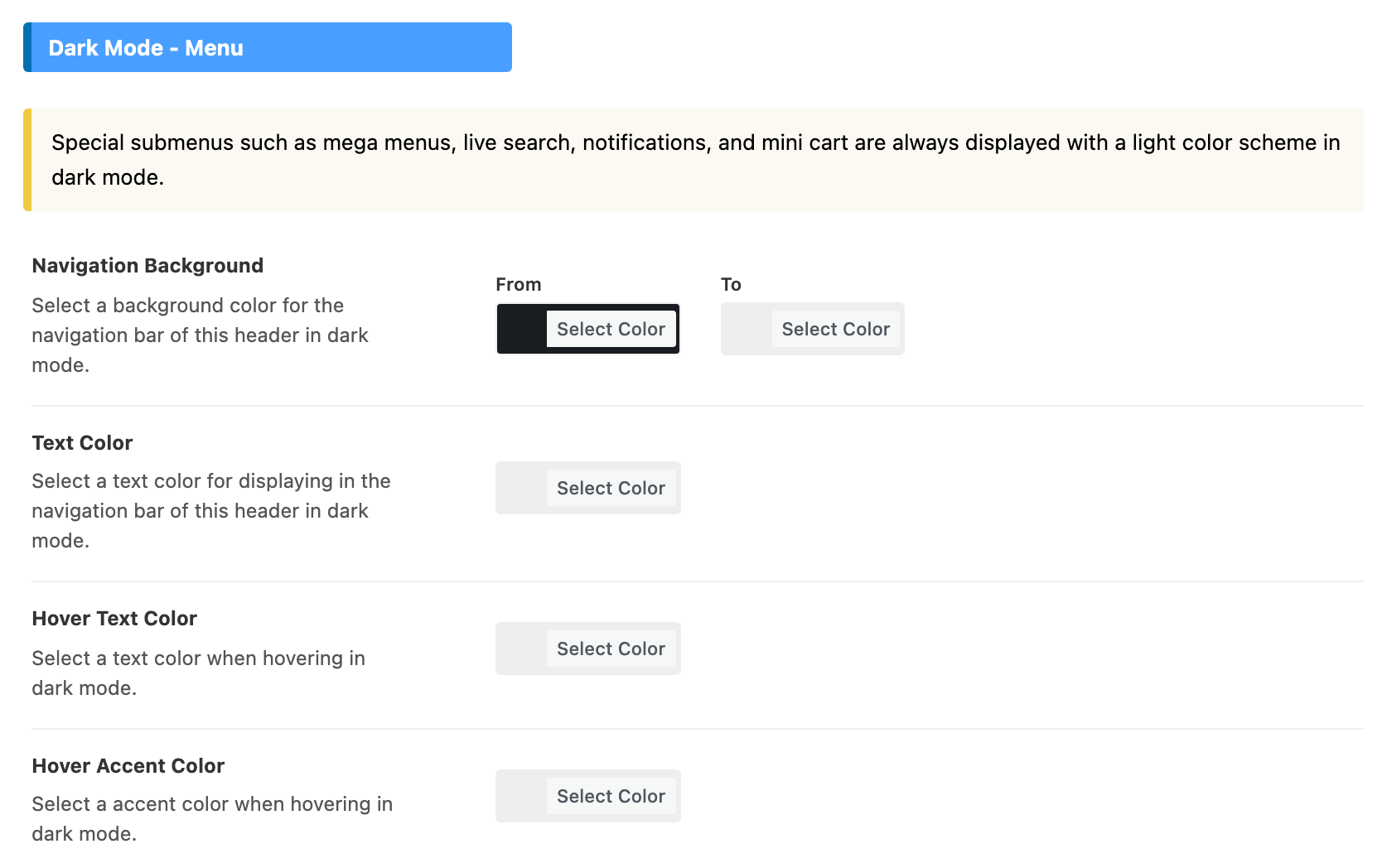
Same four colours as in for Header 1,2,3, for dark mode. One default differs.
- Navigation Background: its default is #191c20, a near black, rather than empty. So in dark mode this bar uses that colour, even when you set a light Navigation Background in Menu.
- Text Color: empty by default.
- Hover Text Color: empty by default.
- Hover Accent Color: empty by default.
Fields only Header 1,2,3 has
- Transparent Headers: layout 5 has no transparent version, so this group of for Header 1,2,3 has no counterpart here.
What overrides it
Navigation Bar Style wins over Navigation Style wherever it is set. It offers four of the seven styles:
- Shadow
- Bottom Border
- Dark Bottom Border
- None
It is set in these places:
- One post: the Site Header tab of the Single Post Settings box, under the editor.
- One page: the Site Header tab of the Single Page Settings box.
- One item of another post type: the Site Header tab of the Single Post Type Settings box.
- Category pages: Theme Options > Category, in the Site Header group.
- The blog page: Theme Options > Blog Index.
- Search results: Theme Options > Search Page.
- Podcast shows: Theme Options > Ruby Podcast > Show.
Left on - Default -, each of them uses the style set here.
Related
- for Header 1,2,3: every shared field explained.
- How to config the header: the whole header, from top to bottom.
- Header layouts: a different layout for posts, pages and archives.
- How to add more button menu to the main navigation
- Your site social profiles: the links behind the social icons.
Did this answer your question?