Header Layout
Which header the whole site shows at the top of every page: one of the five predefined layouts, or a header you built as a Ruby Template.
Where: Theme Options > Header > Header Layout.
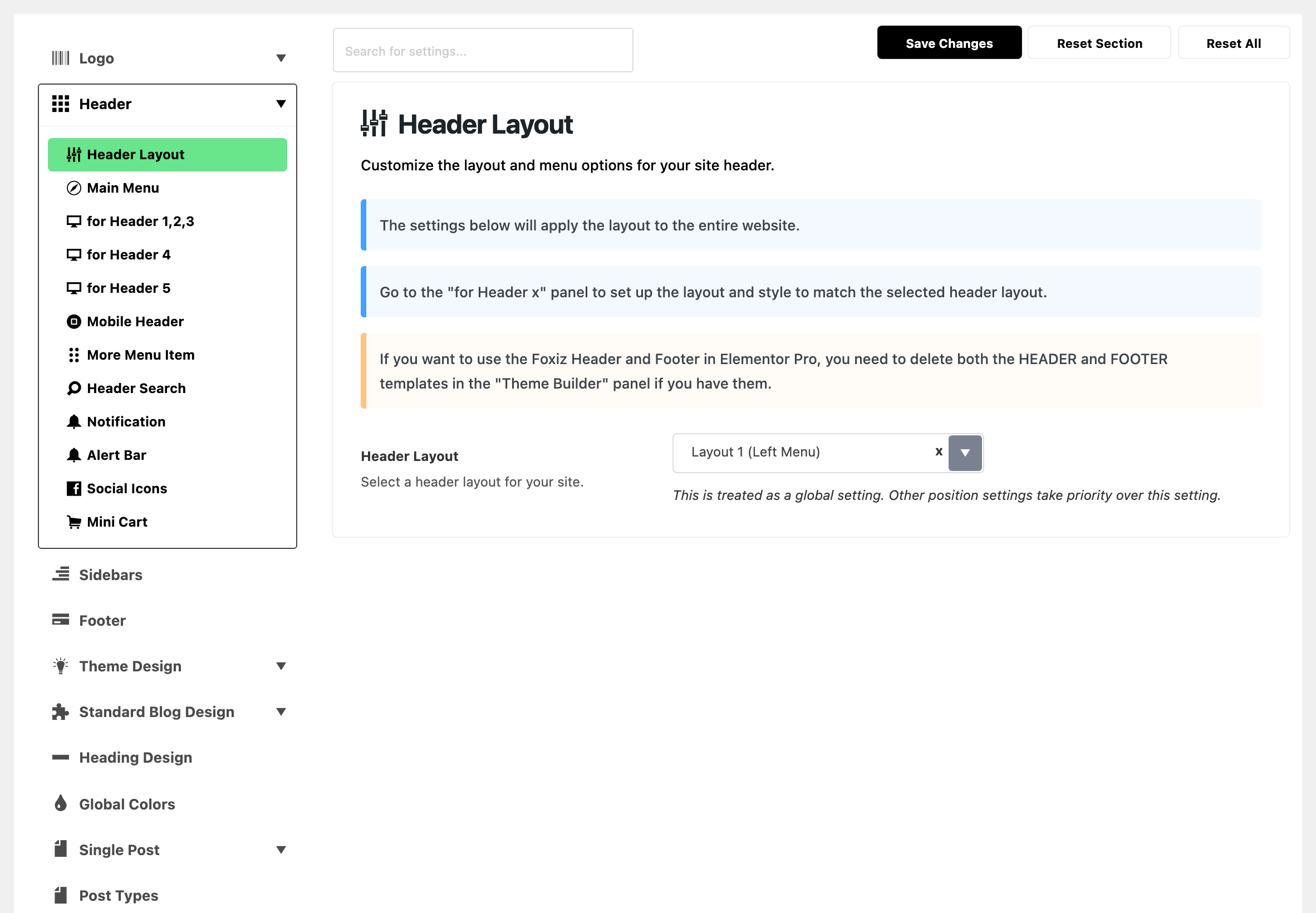
Two fields. The Header & Logo overview says which for Header subsection styles which layout.
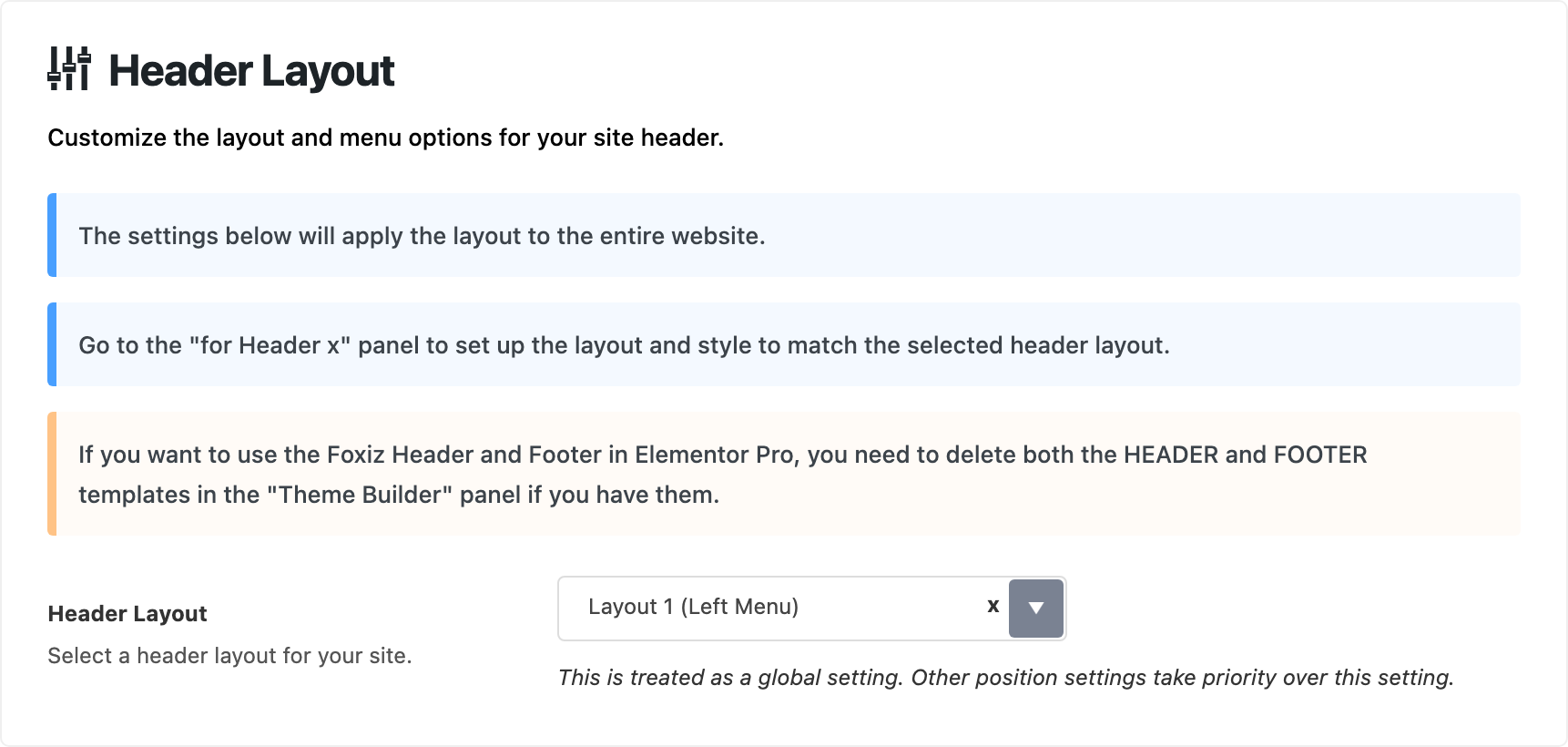
- Header Layout: the header every page uses, unless a narrower setting picks another. Default: Layout 1 (Left Menu).
-
The choices are Layout 1 (Left Menu), Layout 2 (Right Menu), Layout 3 (Center Menu), Layout 4 (Border), Layout 5 (Center Logo) and Use Ruby Template.
-
What each predefined layout looks like:
- Layout 1 (Left Menu): one bar. The logo on the left with the menu right beside it, the icons on the right.
- Layout 2 (Right Menu): one bar. The logo on the left, the menu pushed to the right next to the icons.
- Layout 3 (Center Menu): one bar. The logo on the left, the menu centred, the icons on the right.
- Layout 4 (Border): two rows. The logo on the left of the top row with the social icons and a search form on its right, then a menu bar below with the menu on the left and the sign in, cart and notification icons on the right.
- Layout 5 (Center Logo): two rows. The logo centred in the top row, with the sign in button and social icons on its left and the cart, notification and search icons on its right, then the menu centred on a bar below.
-
For most sites, keep the default Layout 1 (Left Menu): it needs no other change. Pick a two row layout, Layout 4 (Border) or Layout 5 (Center Logo), when you want the logo on a row of its own.





-
Change it when you want a different predefined header across the site. Then style it in the for Header subsection that matches the number you picked.
-
The transparent layouts are not in this list. They are offered only where a narrower setting picks the header, such as Single Post > Site Header.
-
- Template Shortcode: the Ruby Template that becomes the header, as its shortcode. Default: empty. The grey hint shows the shape:
[Ruby_E_Template id="1"].- Shows only when Header Layout is on Use Ruby Template.
- Copy the shortcode from the Template Shortcode column of the Ruby Templates list.
- Left blank, the site falls back to Layout 1 (Left Menu).

A Ruby Template header ignores some of the Header settings. The overview lists them under Good to know.
Using Elementor Pro's Theme Builder? Delete its HEADER and FOOTER templates there, as the warning at the top of this subsection says, or the Foxiz header does not show.
What overrides it
The panel calls Header Layout a global setting: a header picked in any of these places wins, on the pages it covers.
- One post or page: the Site Header section of its Single Post Settings or Single Page Settings box, below the editor. It holds Predefined Header Layout and or Use Ruby Template for Site Header.
- Every single post: Header Layout and Template Shortcode in Single Post > Site Header. The same subsection has a template per post format, such as Site Header for Video.
- Category pages: Header Layout and Or Use Ruby Template for Site Header in Theme Options > Category.
- One category, tag or taxonomy term: the Site Header tab on its edit screen.
- The blog page: Header Layout and Or Use Ruby Template for Site Header in Theme Options > Blog Index.
- Search results: the same two fields in Theme Options > Search Page.
- Podcast episodes and shows: Header Layout in Ruby Podcast > Episode and Ruby Podcast > Show.
A Ruby Template shortcode set in any of these wins over a predefined layout set in the same place.
Two of these places can cover the same page. A single post uses the first header it finds, in this order:
- The post's own Site Header section, in its Single Post Settings box.
- The template for its post format in Single Post > Site Header, such as Site Header for Video.
- Template Shortcode, then Header Layout, in Single Post > Site Header.
- Header Layout here.
A category page follows the same rule:
- The category's own Site Header tab, on its edit screen.
- Header Layout and Or Use Ruby Template for Site Header in Theme Options > Category.
- Header Layout here.
A page has only its own Single Page Settings box above this setting. A field left on - Default -, or a template box left blank, passes the choice down the list.
Related
- Header layouts: setting a different header for posts, one post, categories, the blog and search, step by step.
- How to config the header: the whole Header tab, top to bottom.
- How to create header templates and assign them to your website: building the Ruby Template that Template Shortcode takes.
- How to add header template builder to Elementor page
Did this answer your question?