Container Width
How wide the content of your site can get, with a separate, narrower width for single posts if you want one.

Where: Theme Options > Theme Design > Container Width.
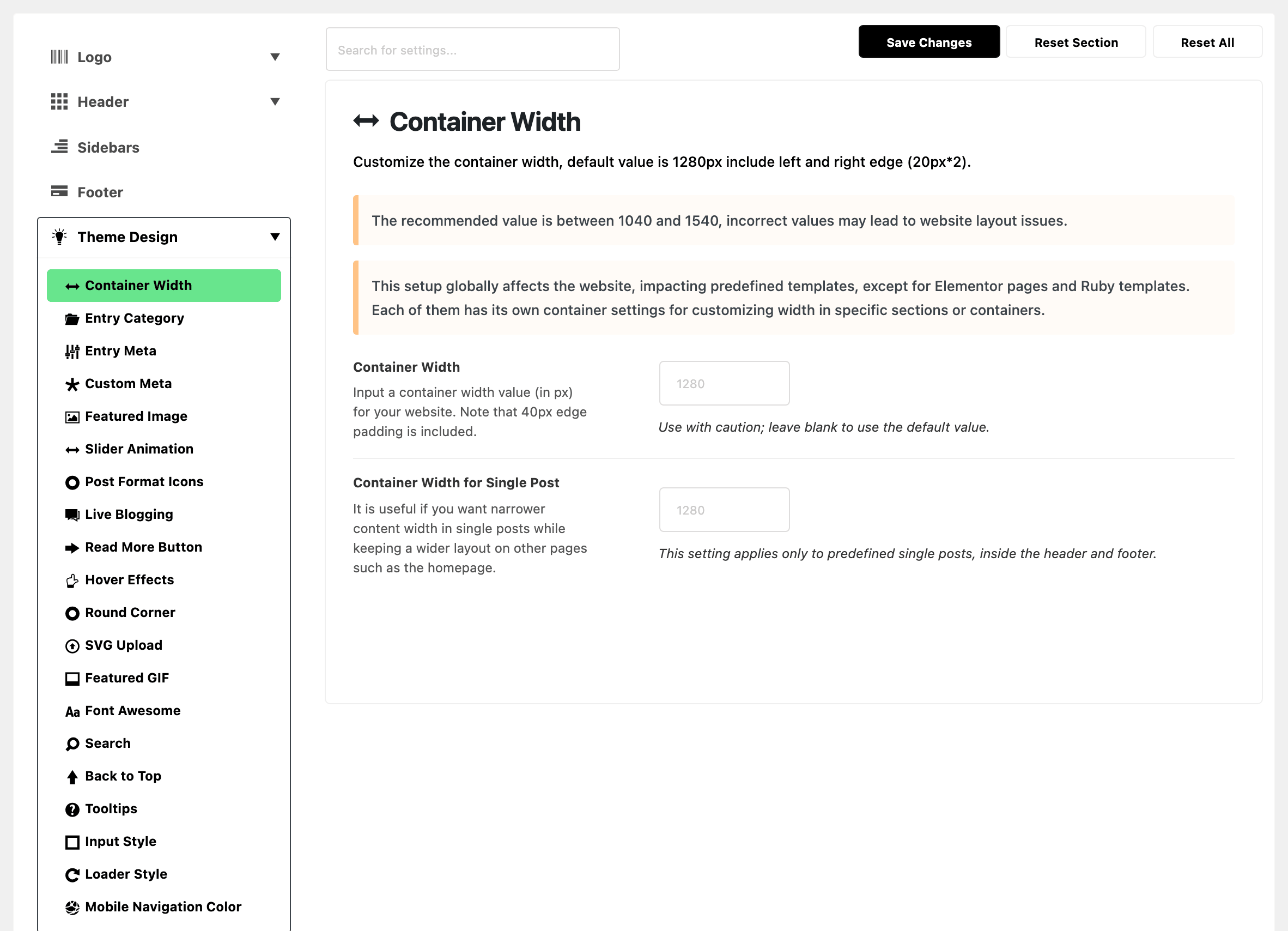
Two plain pixel numbers, no preset list.
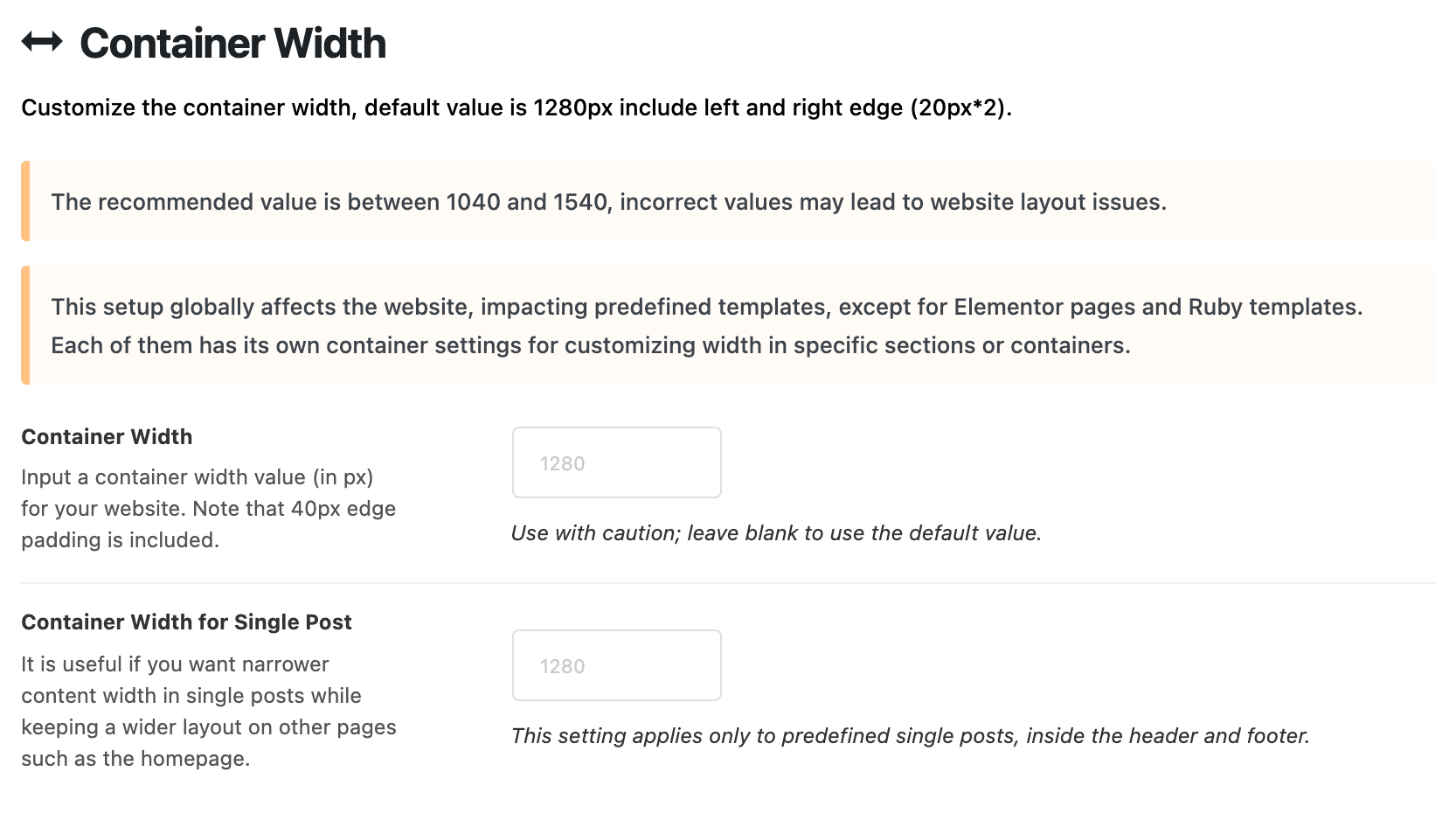
- Container Width: the widest your site gets. Empty by default, which means 1280px. The number includes 40px of padding at the edges, so 1280 gives you 1240px of content. The panel asks you to stay between 1040 and 1540. Change it when you are matching a design at a different width.
- Container Width for Single Post: a narrower width for the article alone. Use it to keep a wide homepage and a comfortable reading column. Empty by default, which keeps articles at Container Width. It applies to the theme's built in single post layouts, where the article header, the content and the post footer sit. Fill it in when articles read too wide.
Container Width also sets a second, narrower width, at roughly two thirds of the number you type. Two kinds of page use it:
- the narrow single post layouts;
- a static page set to optimize line length.
So a very small container width makes those pages noticeably tight. For pages, Default Max Width (Optimize Line Length) at Theme Options > Single Page replaces it.
What overrides it
- Elementor pages: the width set on the section or container wins. Neither field here reaches them.
- Ruby Templates: the width set on the section or container wins. Neither field here reaches them.
Related
- Global layout settings for Elementor: matching an Elementor page to this width.
- Elementor builder
- How to create a single page: the page width that follows this one.
Did this answer your question?