How to Create a Your Own Meta (Custom Meta)?
The theme comes with a custom meta feature. It lets you create your own meta label and show it in post listings or on single posts, for example Total Time: 6 hours.
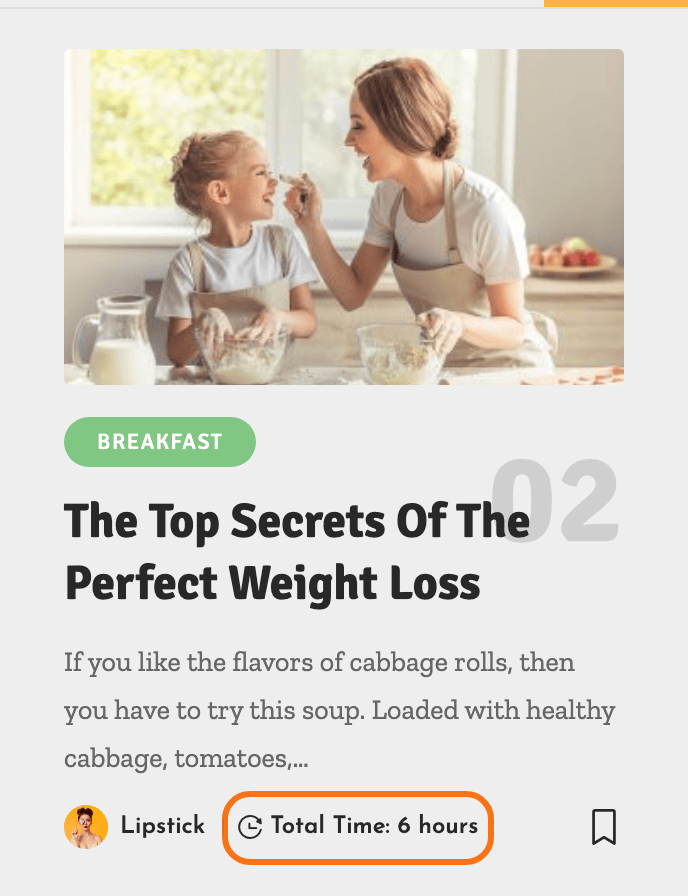
There is one of them, not a list. You define a single label here, and every post fills in its own value. So the label has to be general enough to suit all of them.
Getting started
-
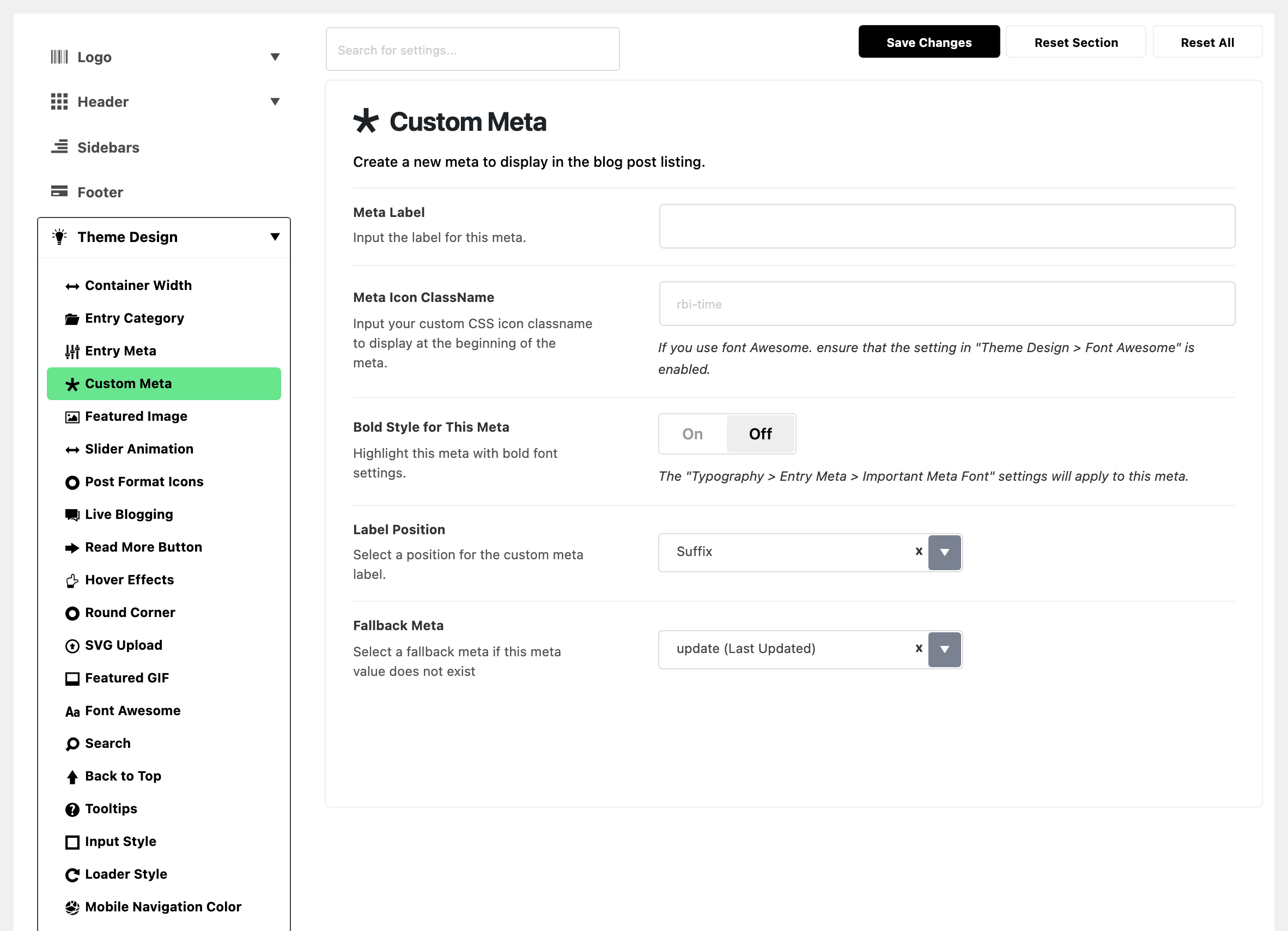
Navigate to Foxiz > Theme Options > Theme Design > Custom Meta. It is a subsection in the left hand list under Theme Design, directly after Entry Meta.
-
The five fields below are the whole subsection. There is nothing else on it.
-
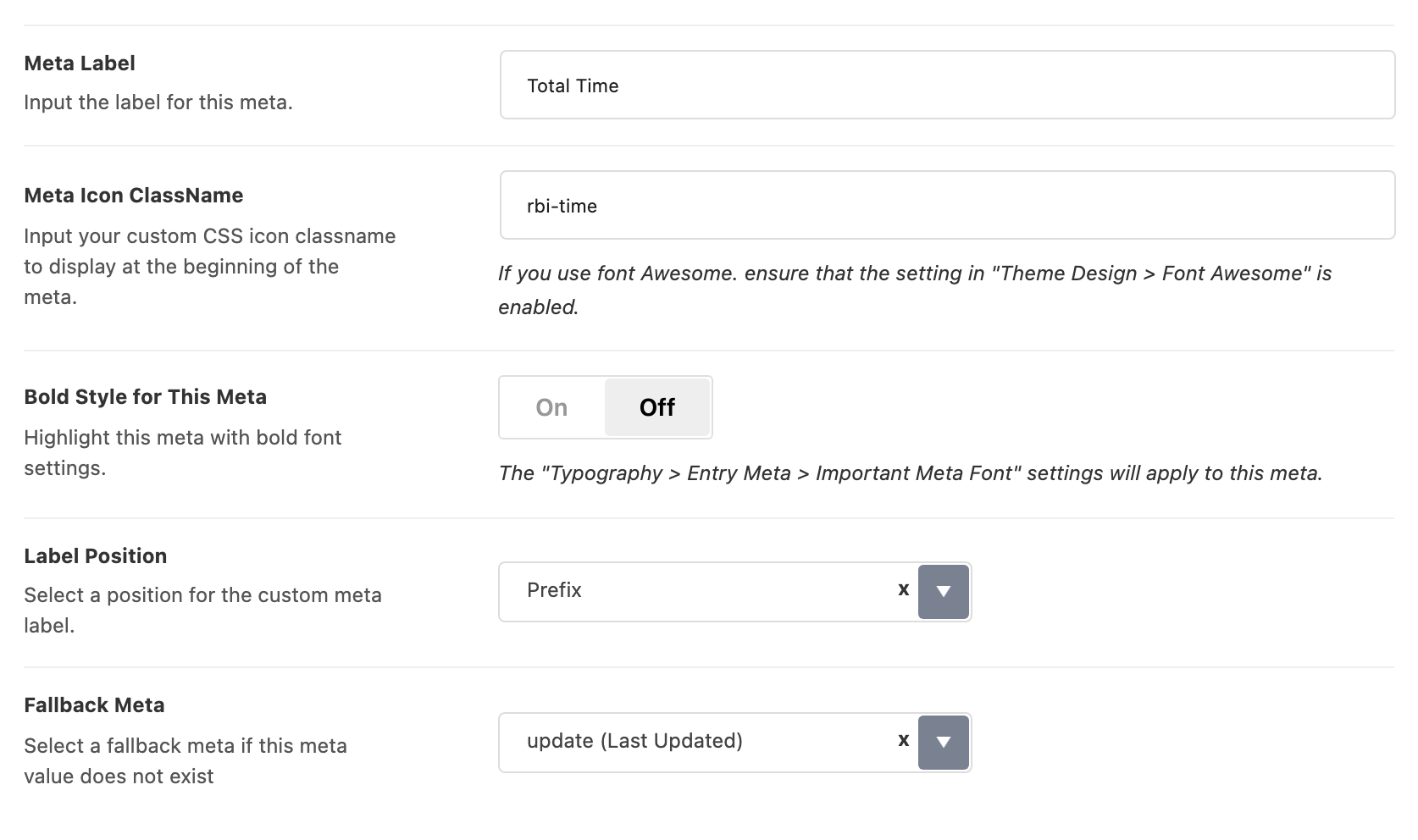
Meta Label: Input label text for your meta. This is the fixed part, "Total Time" in the example above.
-
Meta Icon ClassName: Input an icon name if you want an icon before the meta. Foxiz icon names look like
rbi-time, the field's own placeholder. To find a name, see Ruby Icon ClassName.A Font Awesome class only draws once Theme Design > Font Awesome is on. Without it, the icon is blank space.
-
Bold Style for This Meta: This meta will be bold if you enable this option. It is off by default. When on, the meta does not just turn bold: it switches to the font set in Typography > Entry Meta > Important Meta Font.
-
Label Position: Select a position for the custom meta label. Its default is Suffix.
- Prefix reads "Total Time 6 hours". Most labels want this one.
- Suffix reads "6 hours Total Time".
-
Fallback Meta: Choose a fallback meta if the value of this meta does not exist or has no value. Its default is update (Last Updated). The other choices are author, publish date, categories, tags, post views, comments, reading time and None.
The fallback is why a post with no custom value shows the last updated date instead of nothing. It is decided post by post:
- A post you have not filled in shows the fallback.
- The posts you have filled in show your value.
So the meta line never collapses to a gap.
Set Fallback Meta to None if you would rather an unfilled post show nothing at all.
Add a Value for Your Post
-
Navigate to Posts > All Posts, then select the post and click on the edit link.
-
At the bottom of the editor, click the Meta Boxes bar to open it.
-
In the Single Post Settings box, click the Custom Meta tab.
-
Input a value into Custom Meta Value option. Only the value goes here; the label and the icon stay in Theme Options.

-
Click Save, or Publish on a post that is not published yet.
Showing the Custom Meta
The item only shows in a meta line whose list includes custom. Three places hold such a list:
- Theme Options > Standard Blog Design: each module's Entry Meta Tags is the default for every post listing that uses that module.
- An Elementor block's Entry Meta Tags, on its Style tab: that one block.
- Theme Options > Single Post > Entry Meta: the meta line at the top of single posts.
In a block, the block's own list wins only once its Entry Meta select reads Custom Below. Left on Default from Theme Option, the block shows the module's list from Standard Blog Design. So add custom to the modules you use first, then change only the blocks that should show a different line.
For post listings
Do this first: it sets the meta line of every listing that uses a module, blocks included, until a block chooses its own.
- Navigate to Foxiz > Theme Options > Standard Blog Design and open the module your listing uses, such as Grid 1 or List 1. A block's layout name is its module.
- In the Entry Meta group, click the Entry Meta Tags field and select "custom (Custom)".
- Click Save Changes.
Each of the ten modules is set separately, so repeat this for every module your listings use.
For blocks in Elementor
-
Navigate to Pages > All Pages.
-
Select a page you would like to edit or add a new page, and click on the "Edit with Elementor" link.
-
The website will redirect to another URL and the panel will appear on the page. Then click the block you would like to edit.
-
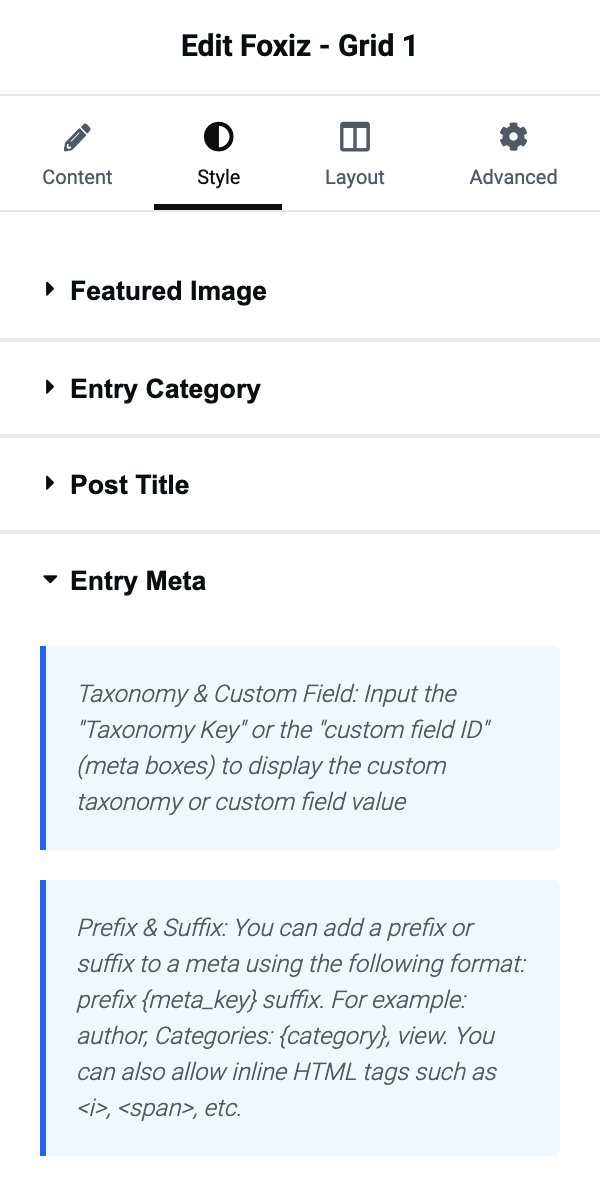
Select the "Style" tab, then find "Entry Meta"
-
Set the Entry Meta select to Custom Below. Until you do, the Entry Meta Tags box underneath is ignored. The block keeps using the module's meta from Standard Blog Design.
-
In the "Entry Meta Tags" box, type the keys you want, separated by commas, with
customamong them. It is a text box, not a dropdown. The key is lowercase:avatar, author, custom.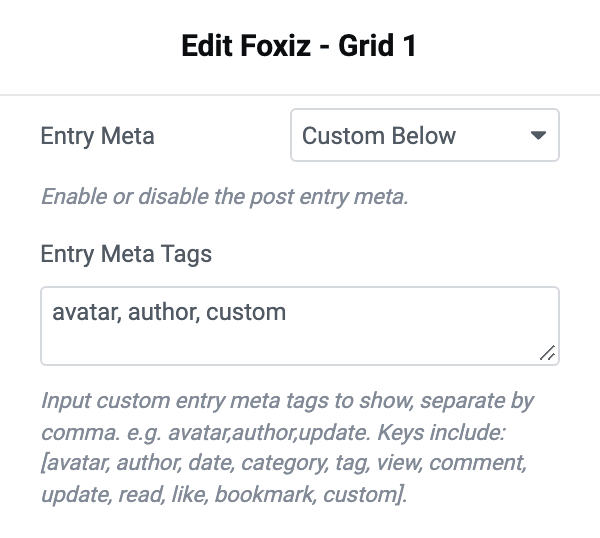
For Single Post
-
Navigate to Foxiz > Theme Options > Single Post > Entry Meta.
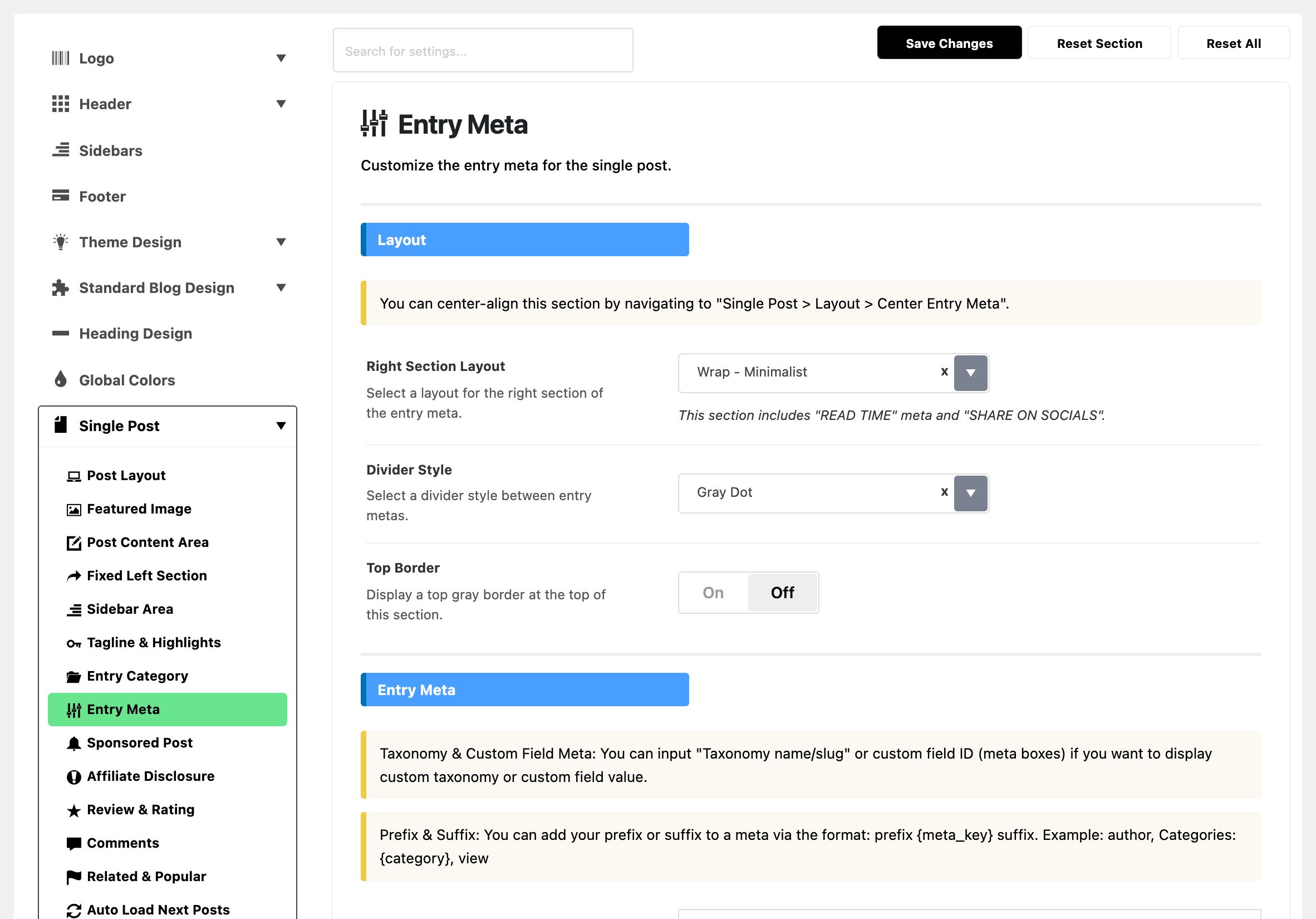
-
Find the Entry Meta Tags option.
-
Then click on this field option and select "custom (Custom)". This one is a multi select, so the option shows its key first.
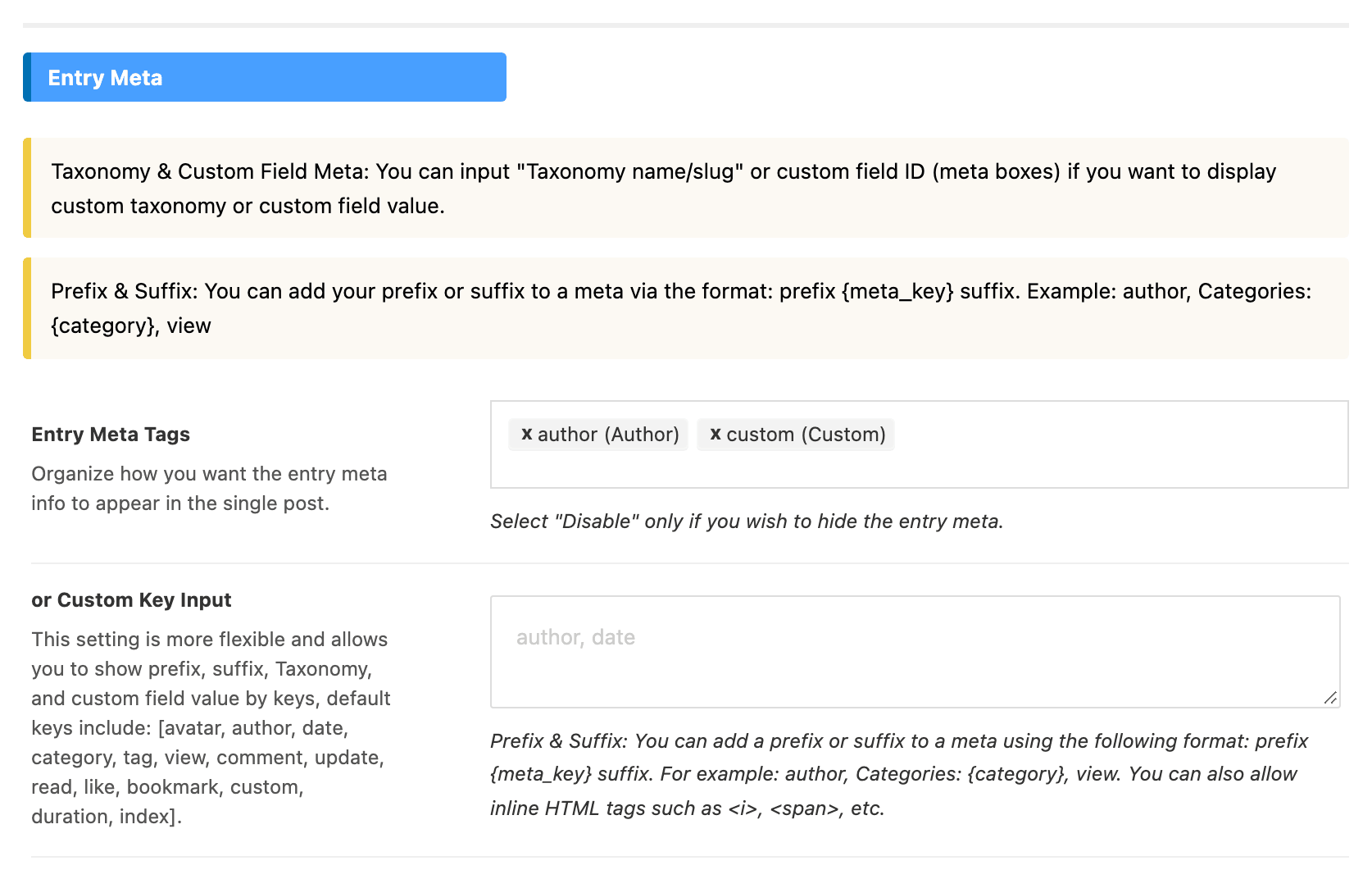
-
Click Save Changes.
Entry Meta Tags also sets the order. The items show left to right in the order you listed them.
- In Theme Options the field is a multi select: an item you remove and add back goes to the end. To move
custom, clear the field and pick the items again in the order you want. - In an Elementor block, Entry Meta Tags is a text box, so you reorder by retyping the list:
custom, authorputs your meta first.
Custom Meta Value is Foxiz's own field. To print a field that some other plugin created on your posts, use the Foxiz - Custom Field Meta block in Elementor. It takes the field name and prints that post's value. See the Foxiz Custom Field Meta block in Elementor.
Did this answer your question?