Featured Image (Theme Design)
How the theme crops and frames post thumbnails across the site, and which image sizes WordPress makes for every upload.

Where: Theme Options > Theme Design > Featured Image.
General
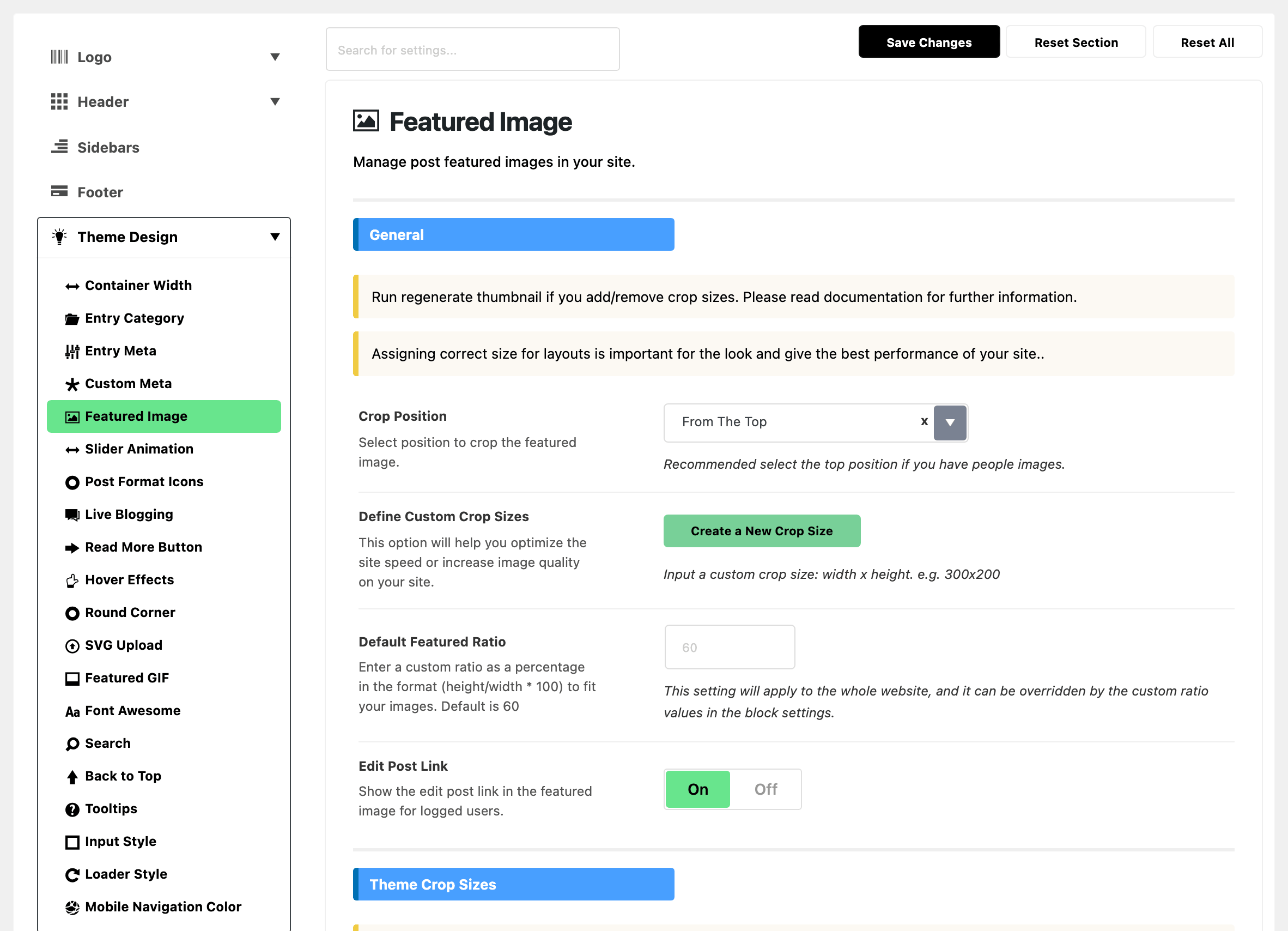
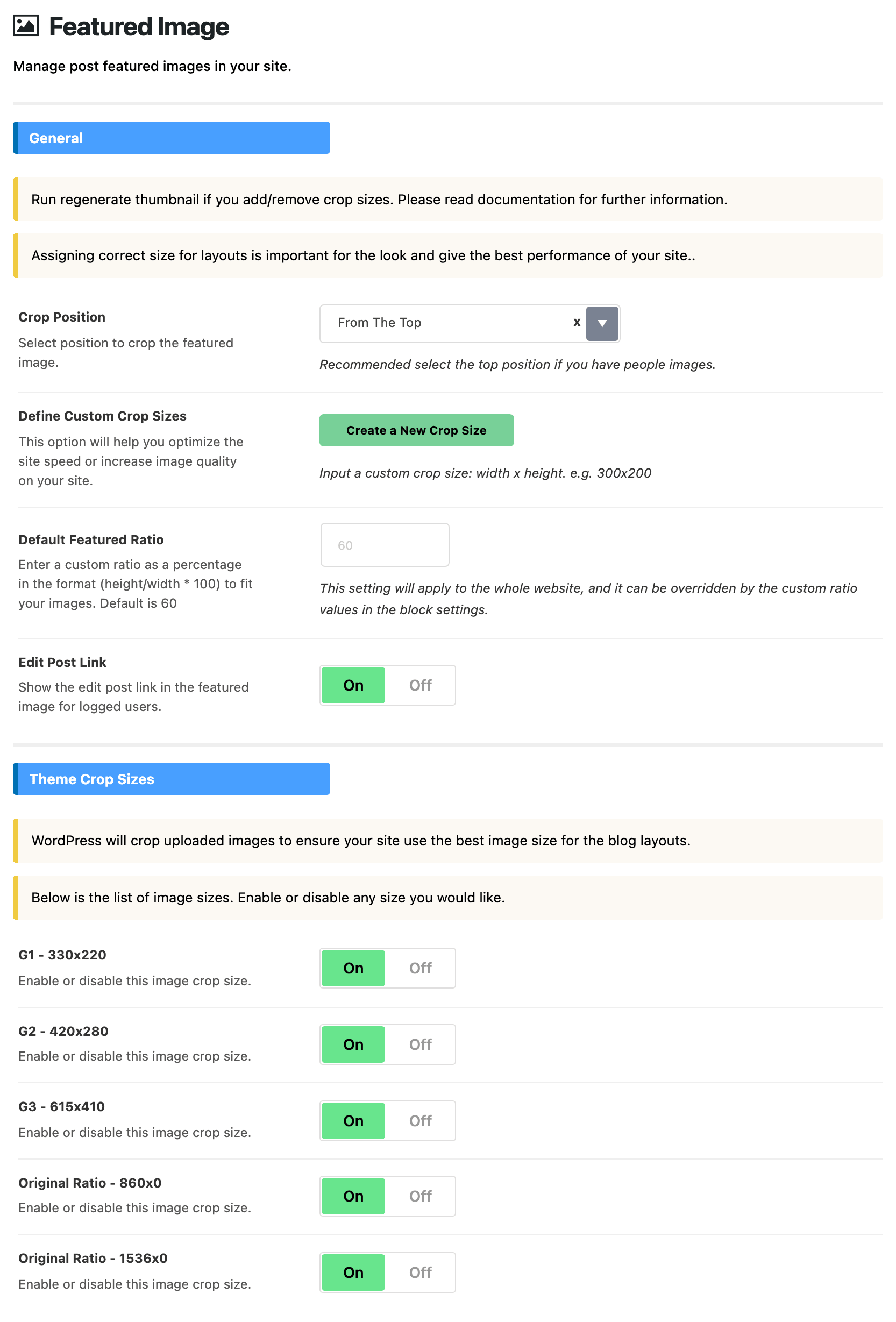
- Crop Position: which part of a tall image survives a crop, From The Top or From The Center. Its default is From The Top, which is the safer choice for photographs of people.
- Define Custom Crop Sizes: extra image sizes, for layouts the built in sizes do not fit. Empty by default. Click Create a New Crop Size for each size and enter it as width x height, one per row.
- Default Featured Ratio: the shape of thumbnails, as height divided by width, in percent. A larger number makes thumbnails taller. Empty by default, with 60 shown in grey. Blank is not one shape: most layouts use 60, but two taller styles use 75 and 85. The Foxiz - Small List 2 and Foxiz - Hierarchical 3 blocks use 75, and the thumbnails in the header notification dropdown use 85. Type any number and every layout takes it, those included.
- Edit Post Link: a small edit link on the thumbnail, seen only by signed in editors. On by default. Turn it off to remove that link across listings.
Theme Crop Sizes
Five switches, one per image size the theme makes. All five are on by default. Turning one off stops WordPress making that size for new uploads. That saves disk space, at the cost of the layouts that ask for it.
- G1 - 330x220
- G2 - 420x280
- G3 - 615x410
- Original Ratio - 860x0
- Original Ratio - 1536x0
Add or remove a size and the images you already uploaded still have the old set, so regenerate thumbnails afterwards: What to do when images are not displaying consistent in size? walks it with the free Regenerate Thumbnails plugin.
What overrides it
- Custom Featured Ratio on a block: the block's ratio wins over Default Featured Ratio, for that block.
Related
- How to create image crop sizes
- How are featured images cropped
- Assigning image sizes for blog layouts: which sizes each layout asks for.
- What to do when images are not displaying consistent in size
- How to create a custom featured image without cropping in Elementor blocks: a block's own ratio.
- Featured GIF: keeping animated GIFs animated.
Did this answer your question?