Hover Effects
What a post headline and a button do when the pointer moves over them, and the colours those effects use.
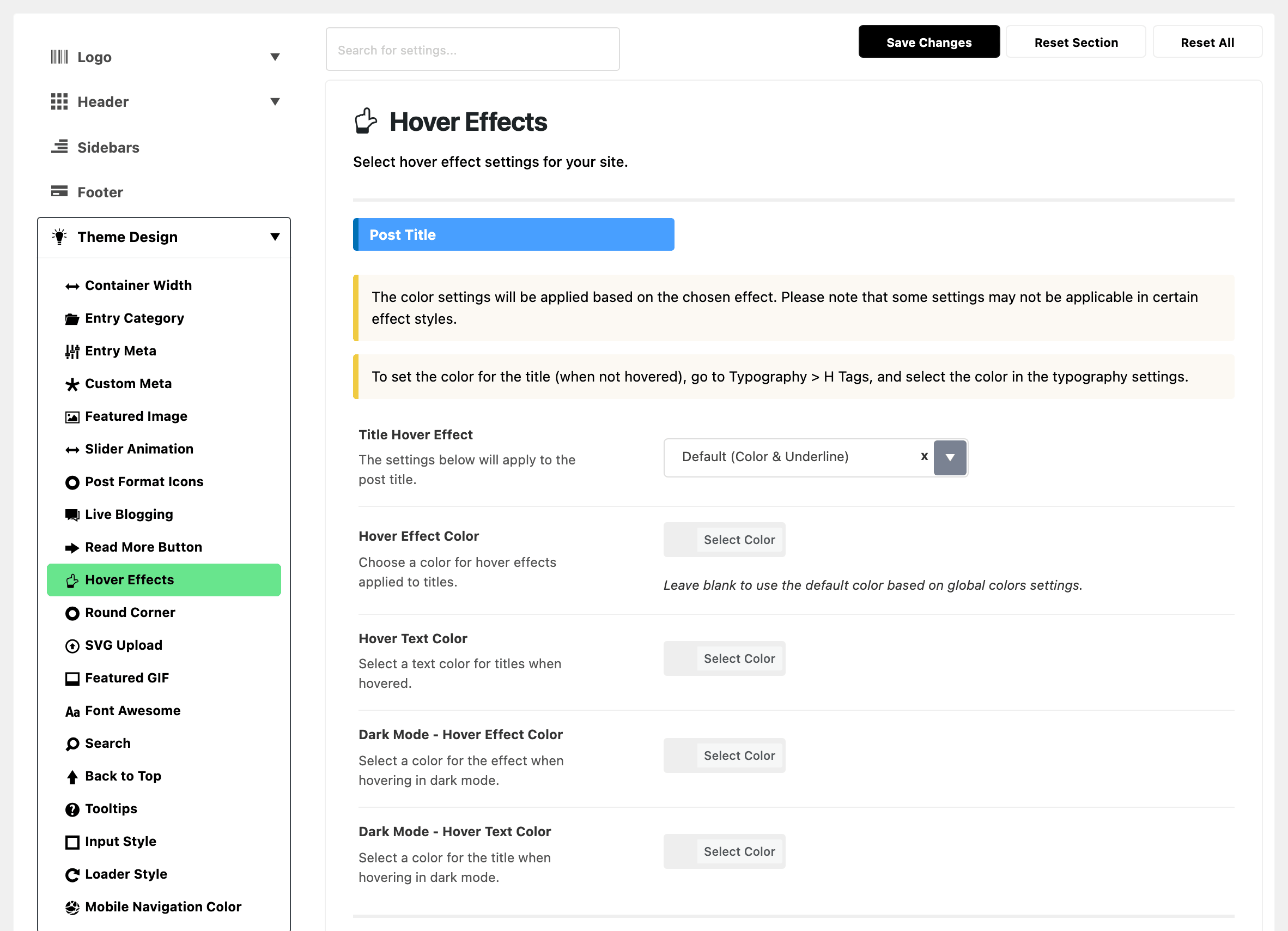
Where: Theme Options > Theme Design > Hover Effects.
Post Title

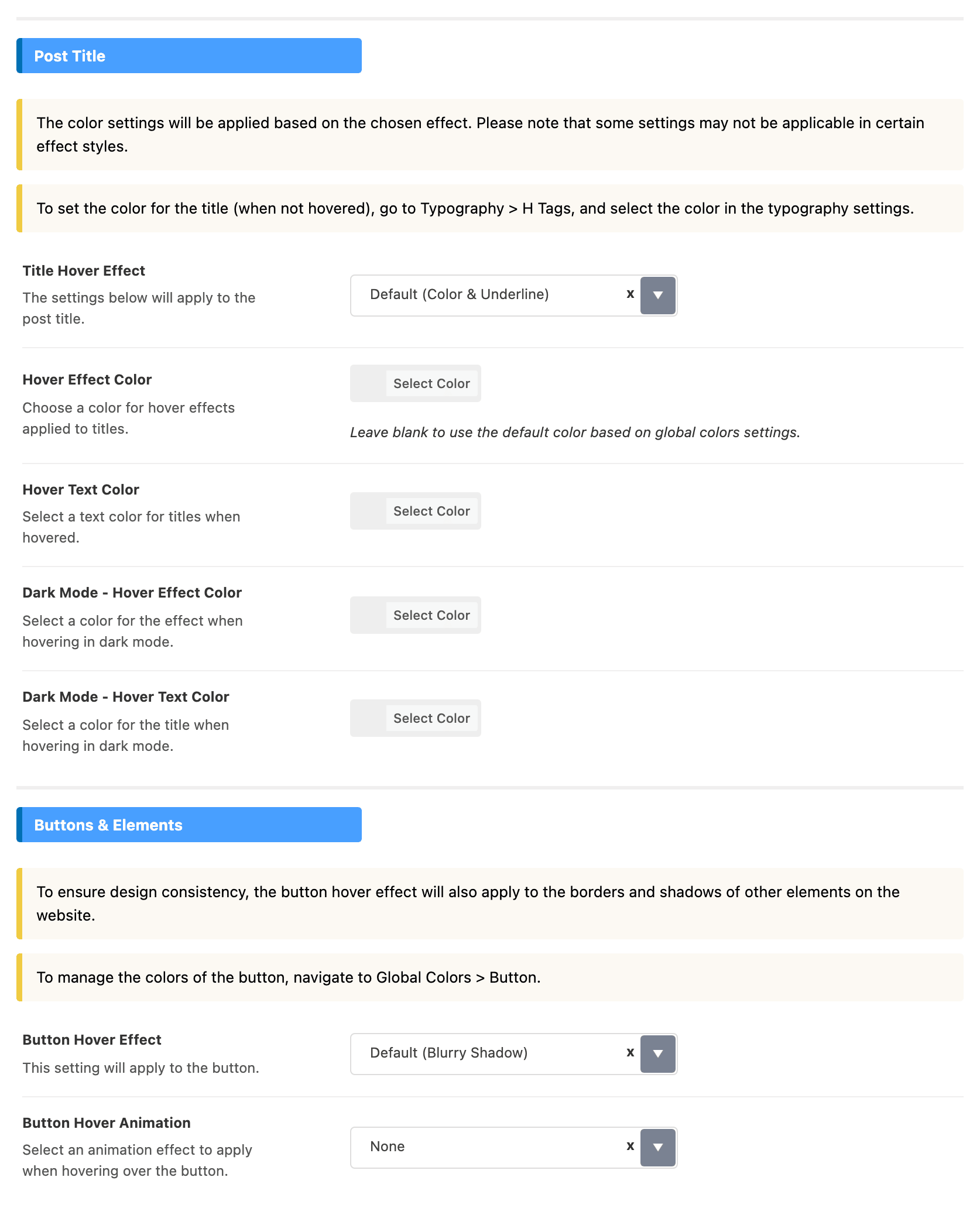
- Title Hover Effect: what a post headline does under the pointer. Eight styles, from Default (Color & Underline) to Style 8 (Opacity). Its default is Default (Color & Underline), the first choice.
Four colour fields go with it. All four are empty by default, which keeps the theme's own colours.
- Hover Effect Color: the underline, border or background the effect draws. Blank uses the global colours.
- Hover Text Color: the headline's words under the pointer. Blank uses the global colours.
- Dark Mode - Hover Effect Color: the underline, border or background, in dark mode.
- Dark Mode - Hover Text Color: the headline's words under the pointer, in dark mode.
Which colour fields do anything depends on the effect you picked. Some styles draw no border, and some replace the text colour outright.
The colour of a headline before the pointer reaches it is not set here. It is in Typography, under H1 Tag to H6 Tag. The panel's note calls them Typography > H Tags.
Buttons & Elements

- Button Hover Effect: what a button does under the pointer. The choices are Default (Blurry Shadow), Style 2 (Solid Shadow) and Style 3 (Background), and the default is the first. It also reaches the borders and shadows of other elements. That is deliberate.
- Button Hover Animation: movement on top of the effect. The choices are None, Scale and Shrink, and the default is None.
Button colours are at Global Colors > Button.
Not here: menu hover
The hover on header menu items is a separate setting: Menu Hover Effect, at Theme Options > Header > Main Menu.
Related
- How to config the header: the menu hover effect and its colours.
- Color options: the button colours.
- Typography options: the headline colour before hover.
- Find out which setting is deciding: reading the active effect off a page.
Did this answer your question?